

MCP servers
An MCP (Model Context Protocol) server gives Capy tools from another service, such as an issue tracker, a database, or an internal API. Once you connect a server, threads and their subagents can call its tools while they work.
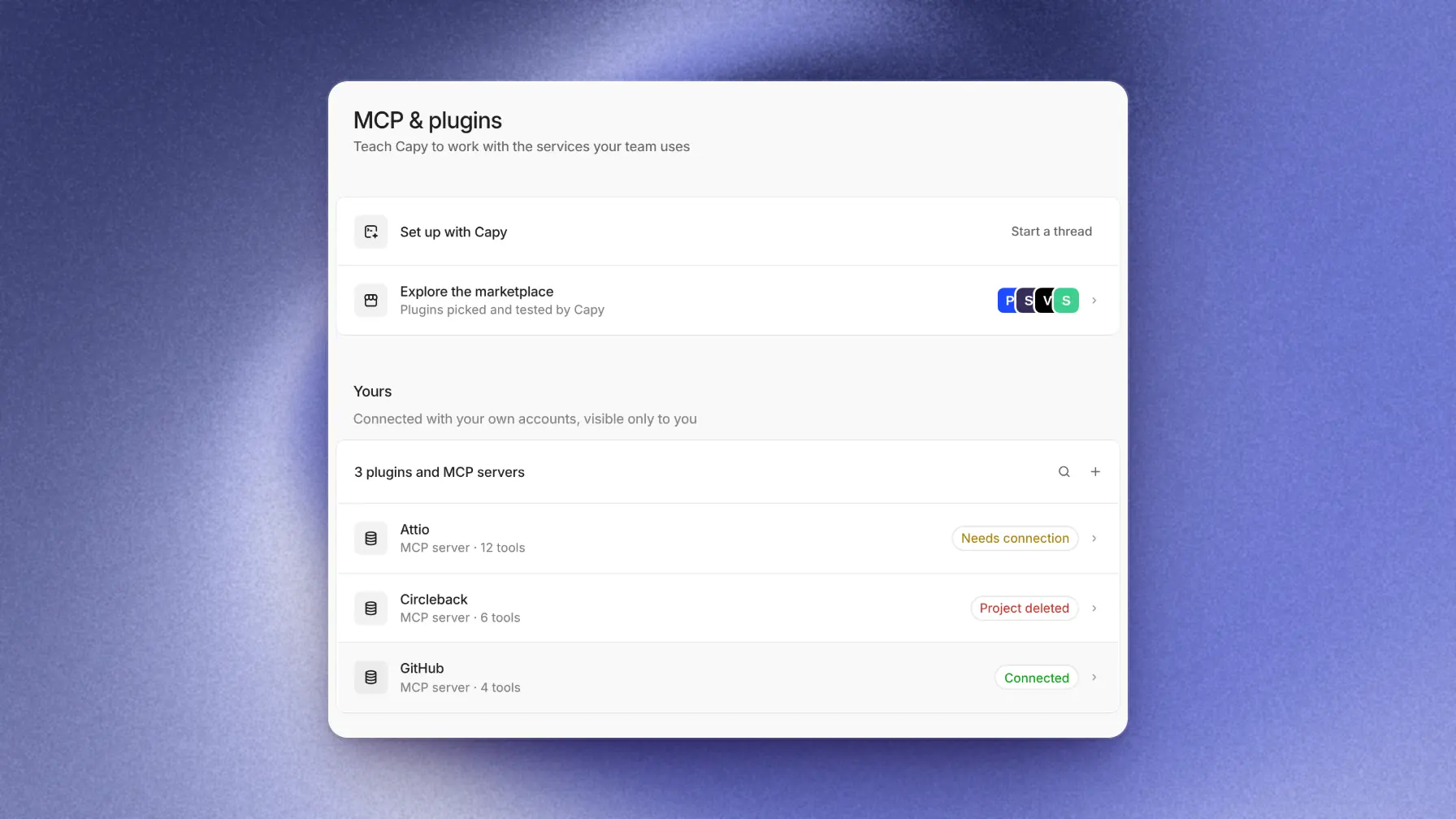
You manage servers in Settings → MCP & plugins. Yours lists servers only you use, and Organization lists servers every member shares.
Add a server
Check for an integration first
An integration does more than add tools. For example, Slack can start threads. A plugin sets up the service's servers and adds skills that teach the agent to use them. A standalone MCP server covers services without either option.
Add a server manually
The MCP server form accepts a remote URL or a local command. Streamable HTTP, the default, checks the URL and detects its sign-in method. STDIO runs a command on the thread's machine.
Capy creates a Key from the server's name. The key prefixes every tool name and must start with a lowercase letter, followed by lowercase letters, digits, or hyphens. Short keys keep tool names readable.
The server can belong to the Organization or Only you, and cover All projects or one project. See Choose the owner.
Authentication supports Sign in through OAuth, API key, or No sign-in. OAuth servers need a connection after you add them.
Use an API key
API key credentials go under Headers, such as Authorization with the value Bearer <your token>. Capy encrypts the value and sends it only to that server, on every request. Capy doesn't expand variables, so a value of $MY_TOKEN fails. Variables holds non-credential headers, also sent on every request.
Run a local STDIO server
A STDIO server runs as a process on each thread's machine. Its configuration includes the Command to launch, Arguments, a Working directory, and environment Variables.
Command to launch: npx
Arguments: -y, @example/docs-mcp
The command and its dependencies must exist on the project's machines, so add install steps to the project's setup when needed. STDIO servers can't use OAuth, so pass credentials as variables. If the process serves MCP on a local port, enter that URL under Also listens on, such as http://127.0.0.1:8080/mcp.
Let Capy set it up
You can ask in any thread, such as "Connect our Sentry MCP server". Set up with Capy also starts a setup thread. Capy proposes a server or matching plugin in a Review and add card. Enter secrets in the form, not the chat. Let Capy set up this server starts a thread to fix an existing server.
Import from Claude Code or Codex
Advanced in the add form imports pasted or dropped Claude Code mcpServers JSON, Codex TOML, a URL, or a command line. Parse fills in the form for one server. For several servers, Review servers lets you select servers and their owner before adding them. Secret references such as ${GITHUB_TOKEN} aren't imported. You can supply the values on the review screen or later.
Choose the owner
| Owner | Who can use it | Whose account |
|---|---|---|
| Organization | Every member's threads | The person who clicks Connect signs in for everyone. An API key is also one key for everyone. |
| Only you | Your threads, including when other members message them | Yours |
A thread uses the organization's servers plus the private servers of the person who started it. When a private server and an organization server share a key, the thread uses the private one. A server set to one Project works only in that project's threads.
Any member can add, edit, connect, or remove an organization server. If anyone turns off its Enabled switch, no member's threads can use it. To change the owner, add the server again with the other owner and delete the old one.
Per-person sign-in
Each member can add an Only you server to sign in with their own account. Add for yourself on a connected organization OAuth server creates a private copy for that member's threads. An organization plugin can also require per-member sign-in. Each member connects on the plugin page.
Sign in with OAuth
Connect signs you in with the service. If the service issues a refresh token, Capy refreshes the token on its own. Otherwise the server shows Needs connection when the token expires or the service rejects it, and you connect again.
Ask to sign in when a thread needs it lets threads use tools that work without an account. A call that needs an account shows a connect card. This option is available when you add the server.
Use your own OAuth client
Some services, such as Asana and Intercom, require an OAuth app in their developer settings with Capy's redirect URI.
The server's Configuration → Advanced → OAuth client accepts your app's Client ID and Client secret under Your own client. After you save the client, Connect starts sign-in.
For other services, leave OAuth client on Automatic. It needs no setup.
Redirect URI
Services with a list of allowed redirect URLs must allow this one:
https://capy.ai/web/callbacks/mcpStatuses and fixes
Each server shows its status in the server list and on its own page. Test shows which step fails and the service's error.
| Status | Meaning | Fix |
|---|---|---|
| Connected | Capy listed the server's tools. | Nothing. |
| Needs connection | Nobody has signed in, or the token expired. Threads get no tools from it. | Click Connect. |
| Needs reconnect | The service rejected the stored sign-in or moved its sign-in server. | Click Reconnect. |
| Missing permissions | The service answered 403. | See Missing permissions or a 403. |
| Registration refused | The service won't let Capy register. | Use your own client. |
| Unavailable | Capy couldn't reach the server or list its tools. | Check the URL or command, then click Test. |
| Not checked | Capy hasn't listed the tools yet. | Click Test. |
| Disabled | The Enabled switch is off. | Turn it on. |
| Project deleted | The server's project was deleted, so no thread can use it. | Change Project. You don't need to add the server again. |
Missing permissions or a 403
A 403 means the service knows who you are but refused the request. Check these in order:
- If the server page shows Grant permissions, click it and approve the extra scopes.
- The account's role, plan, or workspace may not include MCP or API access, or an admin may need to approve the app. Fix that in the service, then click Reconnect.
- The service may accept only MCP clients it has approved. Add the redirect URI if the service lets you. Otherwise, use another server until the service approves Capy.
Good to know
- A Streamable HTTP server needs a public HTTPS URL. To reach a private server, connect Tailscale, then add a STDIO server that runs the server itself or a bridge such as
npx -y mcp-remote <url>. - A thread you start from Linear runs as your linked Capy account, so it can use your Only you servers.
- Tool names take the form
key__tool, such asinternal-tools__query_db. Hide a tool from the model under Tools on the server's page. - Connect only servers you trust. A server's tools act with the access of the account that connected it.