

Desktop app and devices
The Capy desktop app lets a thread run in a folder on your computer, with the tools, credentials, and services you already have there. You can follow the thread from any browser, and you can move it to a cloud machine and back.
Install the app
Download the app from the download page. Sign in with the account you use on capy.ai: Google, GitHub, or your email. Your computer is then paired with Capy as a device.
macOS
Download the .dmg for Apple Silicon or Intel, open it, and drag Capy to your Applications folder. Open Capy from Applications, not from the disk image. If you open it from somewhere else, choose Move to Applications when the app asks.
Windows
Download the x64 installer and run it. It installs Capy for your user account. Threads on a Windows computer need Git for Windows, and a thread offers to install it if it's missing.
Linux
The app ships for x64 and arm64. Pick the download for your distribution:
| Distribution | Download |
|---|---|
| Debian, Ubuntu, Linux Mint, Pop!_OS | .deb. Install it with sudo apt install ./capy-*.deb. |
| Arch, Fedora, openSUSE, NixOS, and others | AppImage. Run chmod +x capy-*.AppImage, then run the file. |
| Packaging Capy for a distribution | .tar.gz. It never updates itself. |
There's no AUR package. Both the .deb and the AppImage update themselves, and the .deb asks for your password once when you choose Update. Keep the AppImage where you first ran it, because an update replaces that file. If the .deb half-installs on a distribution without apt, run sudo dpkg --remove capy and use the AppImage. The app needs a desktop session, so a server without one can't be a device.
Run threads on your computer
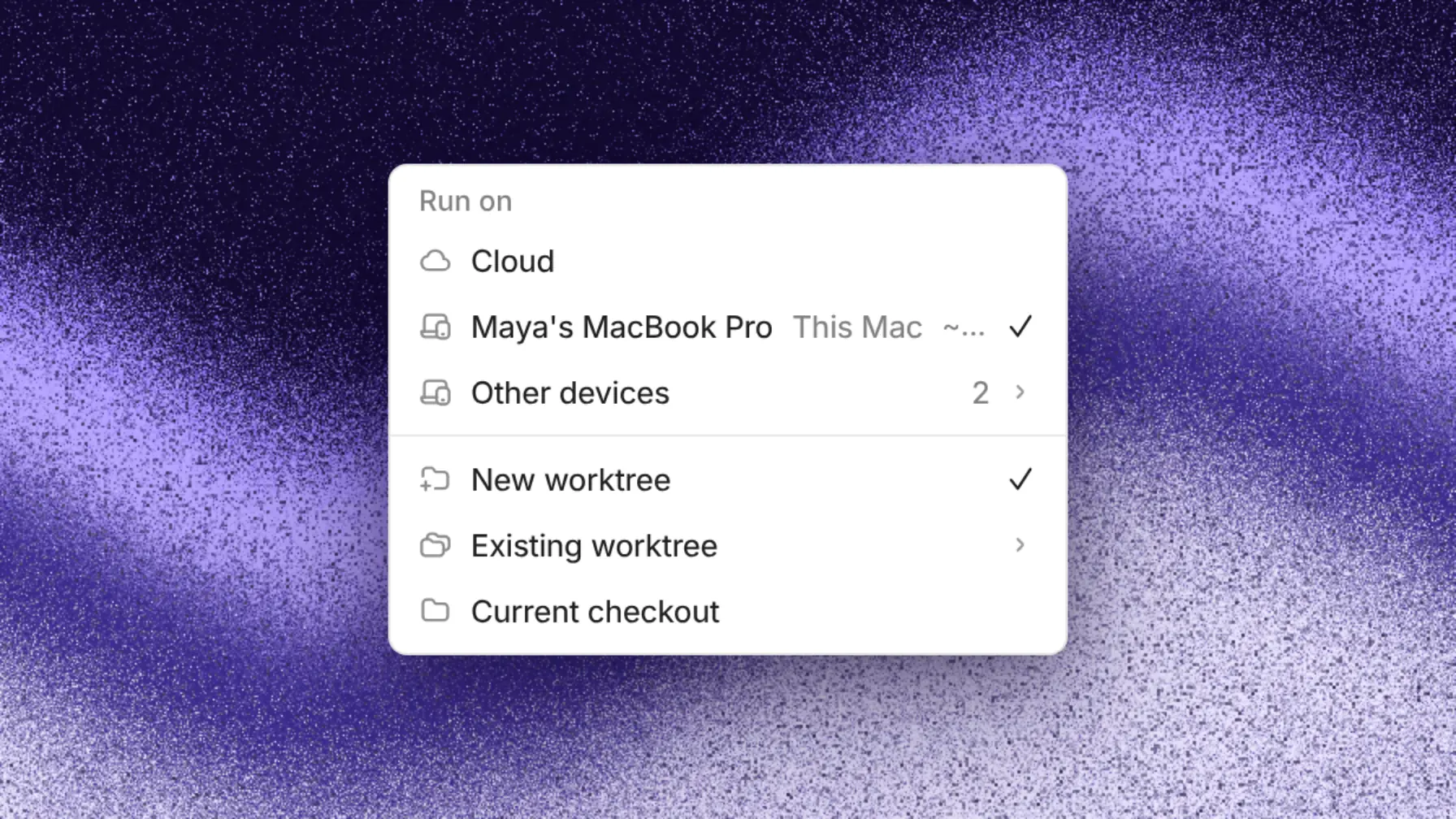
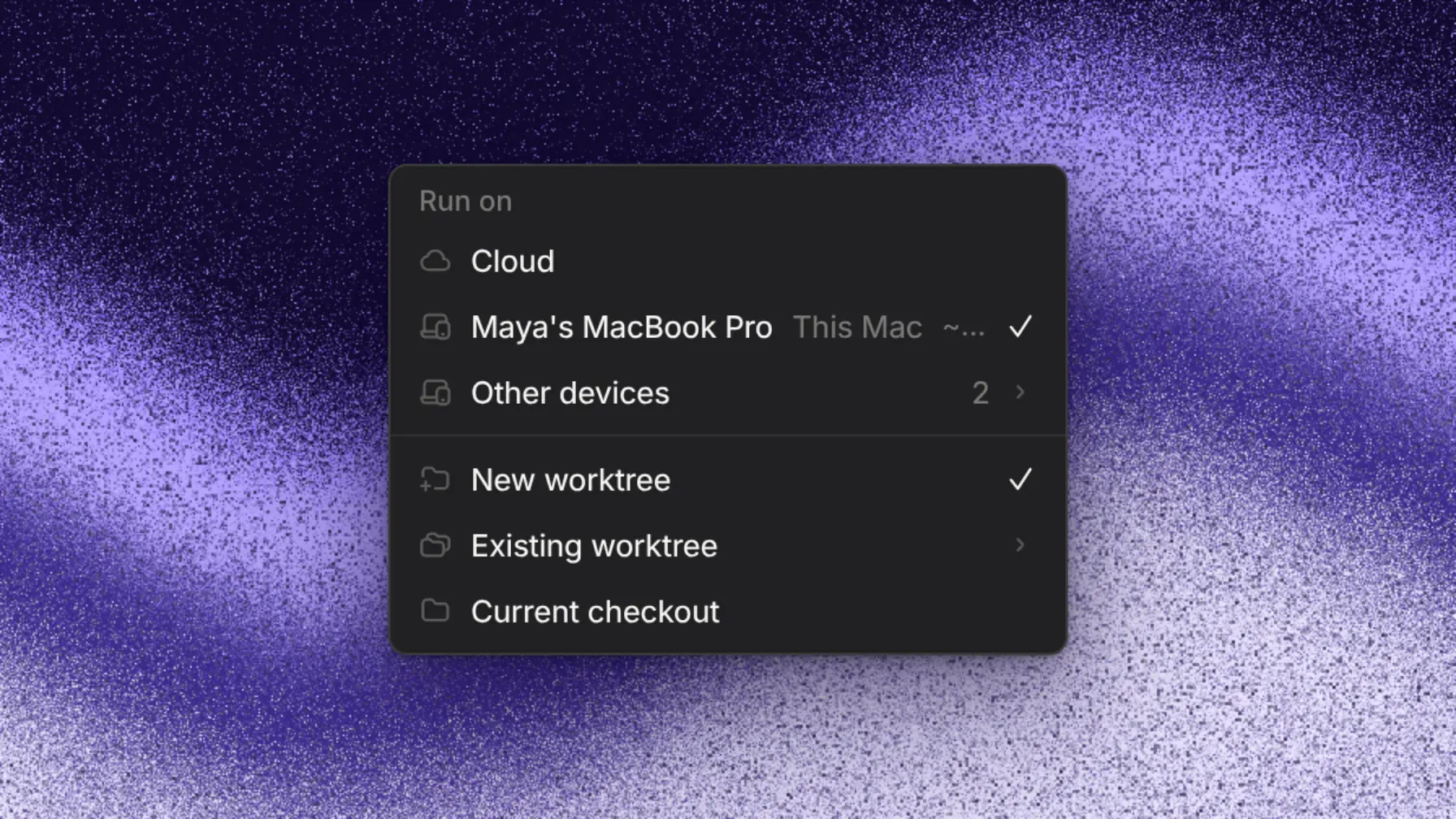
Run on starts a thread in the cloud, on another device, or on this computer (This Mac, This PC, or This computer).
| Option | What the thread works in |
|---|---|
| New worktree (default) | A fresh git worktree, started from the latest base branch on your remote. Your own branch and changes stay as they are. |
| Existing worktree | A worktree that already exists for the folder. |
| Current checkout | Your folder itself, with its current branch and changes. |
Scan a folder links existing clones by matching their git remotes to the project, without cloning again. Project folders lets you change those links later.
Threads on your computer have no machine-time charge. Model usage costs the same as in the cloud; see models & pricing. A Captain can run on a device too. Choose Run on in the New Captain dialog.
Follow threads remotely
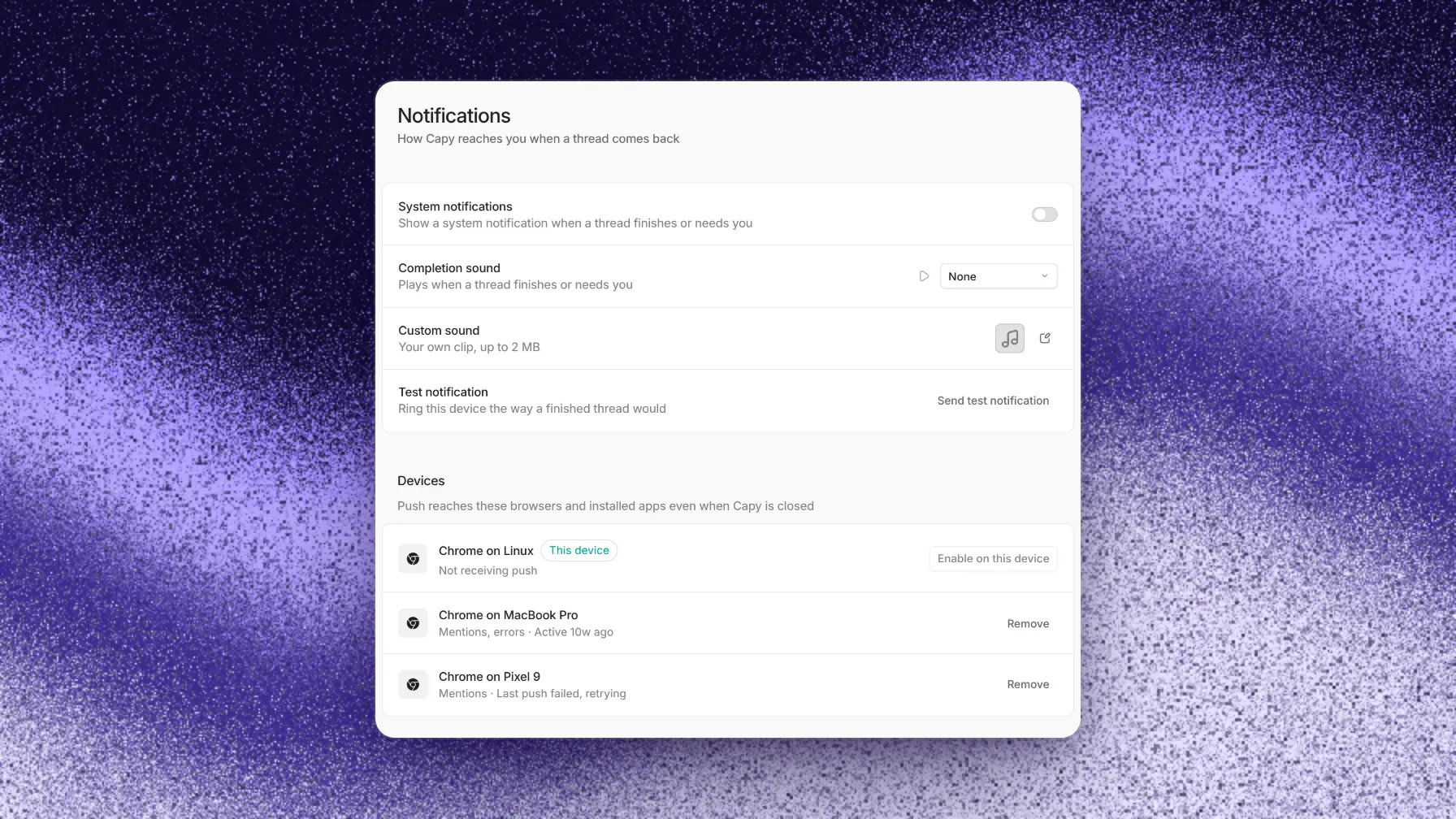
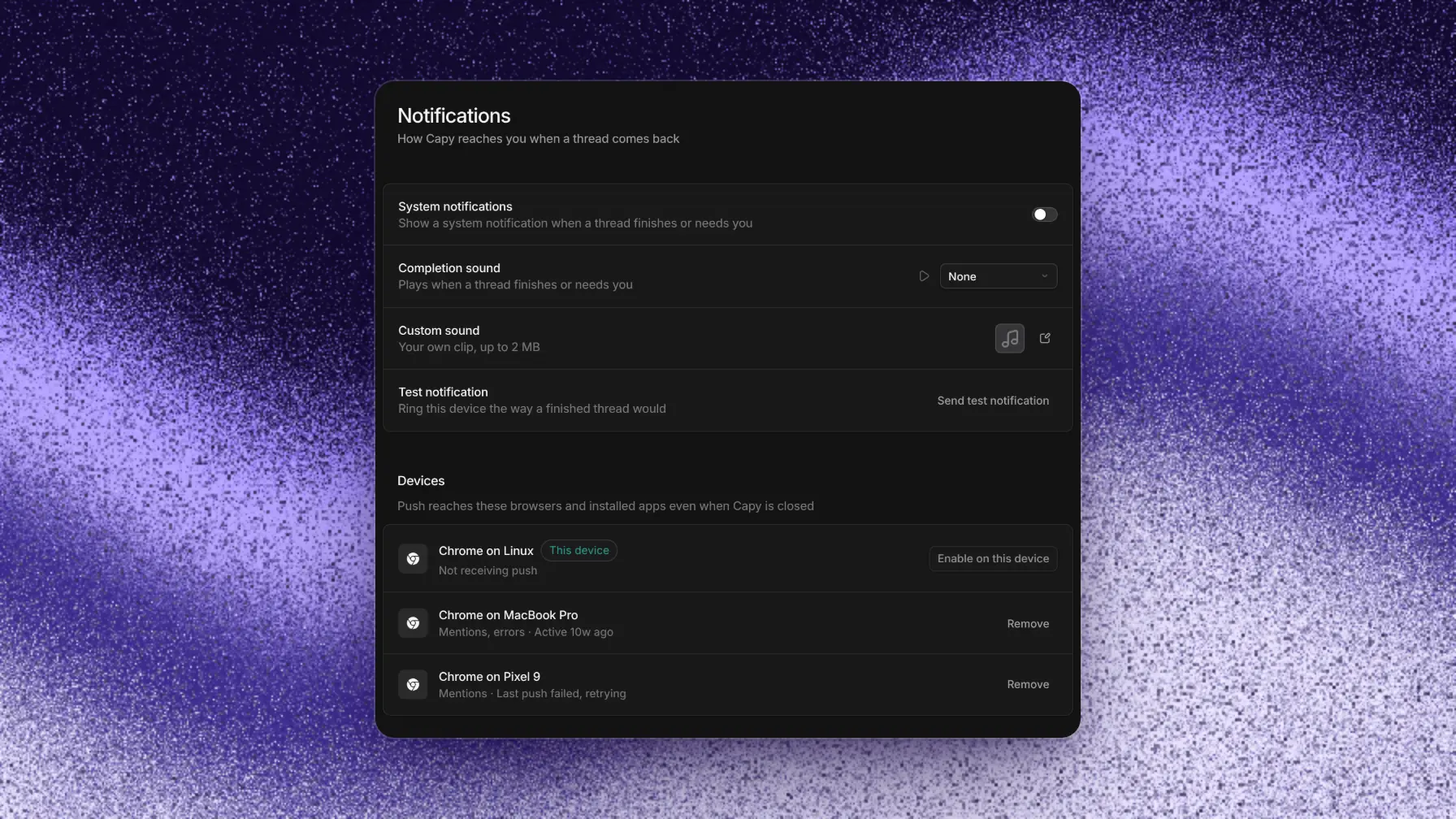
While the app runs and the computer is online, you can start, follow, and reply to its threads from any browser, including your phone's. Linked Slack replies reach the computer too. Notifications controls alerts when a thread finishes or needs you.
Sleep and offline
A cloud thread keeps working when you close your laptop. A thread on your computer waits while the computer sleeps or is offline, for up to 24 hours. It continues on its own when the computer reconnects.
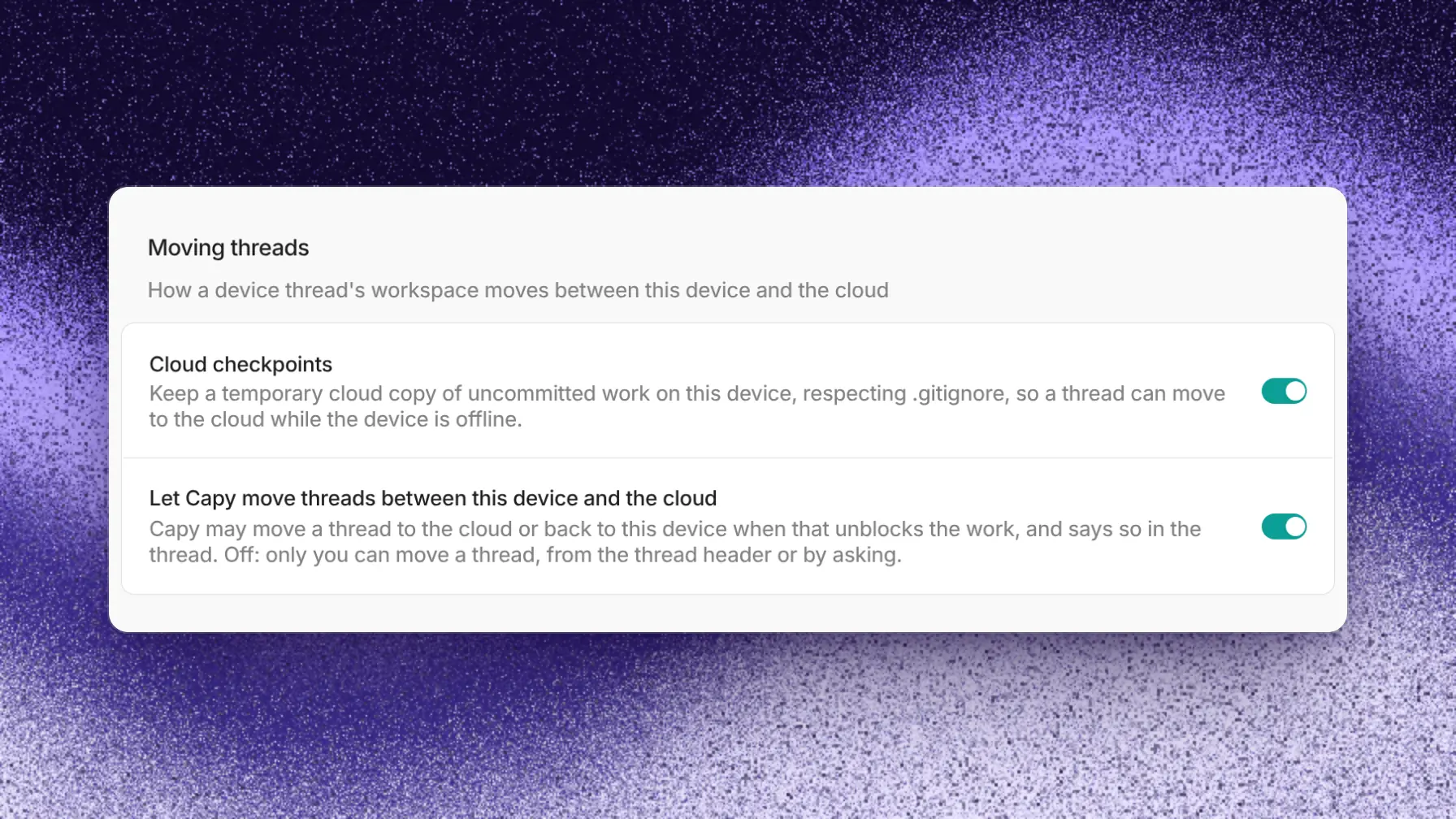
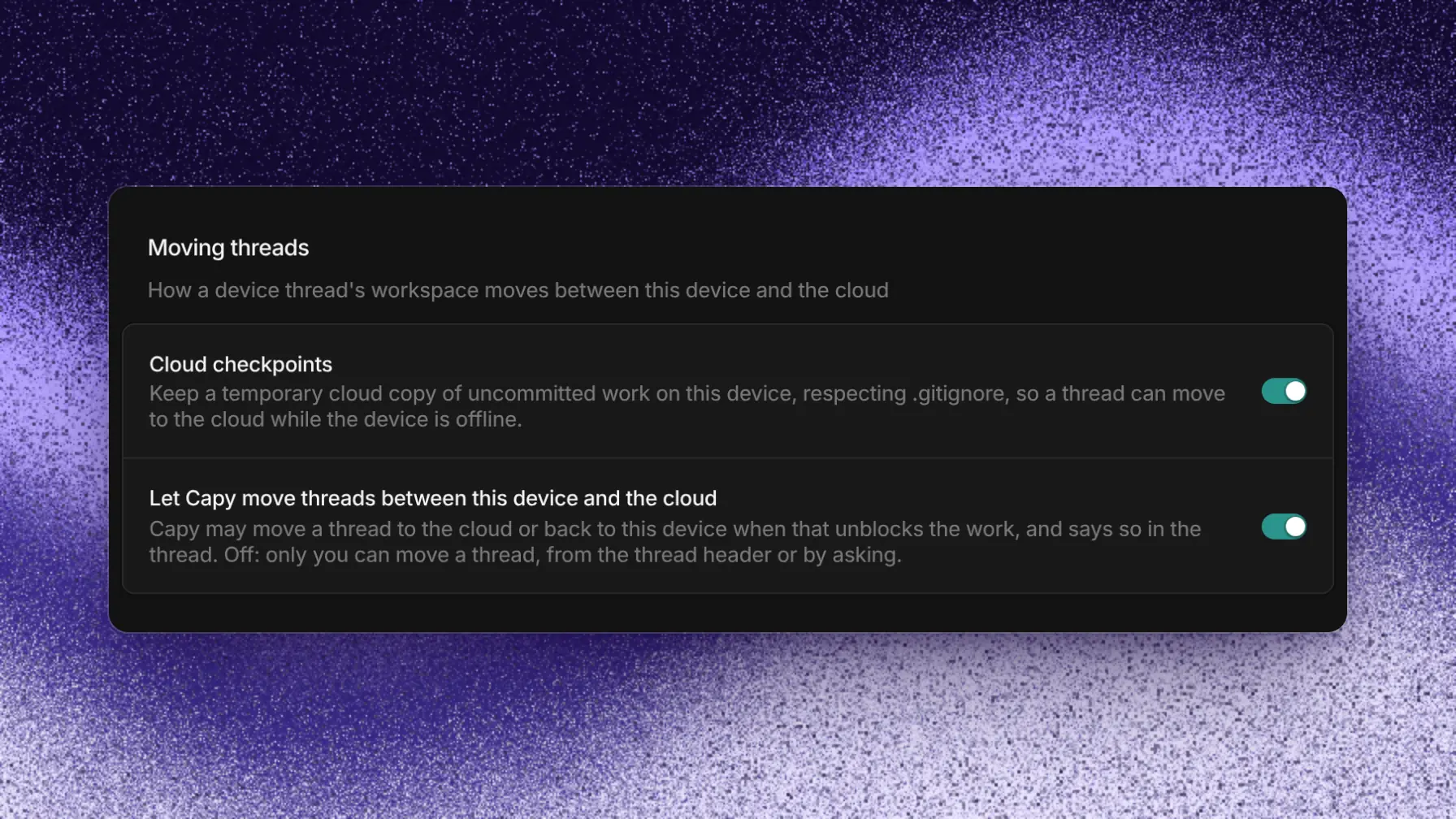
Capy keeps a cloud checkpoint of your uncommitted work so the agent can move an offline thread to the cloud when that unblocks work. Continue on cloud also moves it manually. Device settings can turn off checkpoints or automatic moves.
Move a thread
Continue on moves a thread to another machine. You can also ask, "move this to my MacBook". Moves between devices go through the cloud.
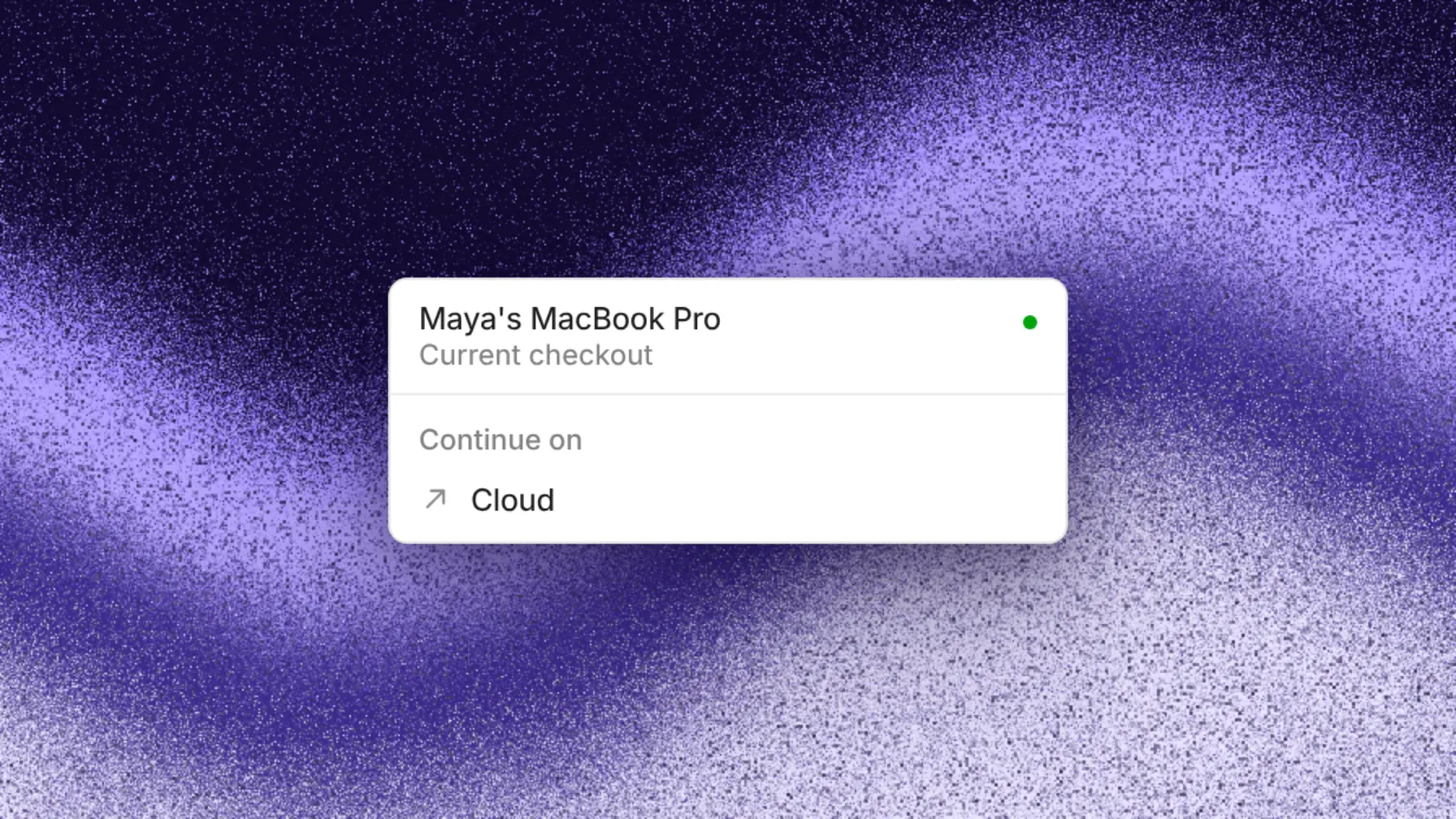
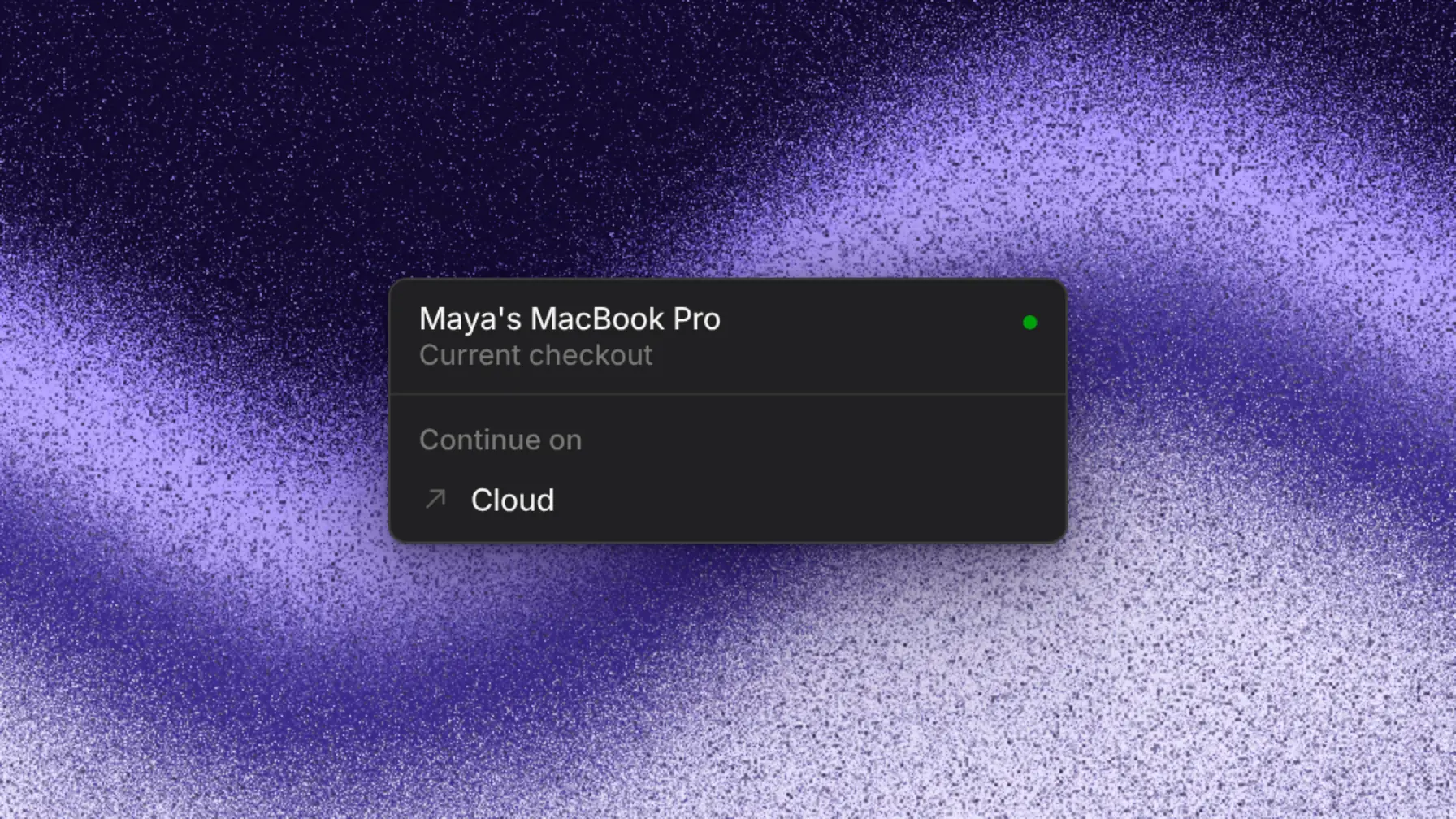
The move ends the current turn, and the agent continues on the new machine with a note about what moved. The conversation, subagents, and pull requests stay with the thread. A move never pushes to GitHub.
These move with the thread:
- Your branch and commits, including commits you haven't pushed.
- Staged, unstaged, and untracked changes, each kept as it was.
- Files in the workspace folder outside the repositories.
These stay behind:
- Files your
.gitignoreignores, such as.envandnode_modules. - Untracked files larger than 2 MB each.
- Anything outside the workspace folder.
- Running processes, such as dev servers and watchers.
Move to your computer
The computer must be online and have a linked folder for every repository in the thread. If a folder is missing, the Continue on dialog lets you link a folder you have or clone the repository. The work goes back into the thread's original folder if that folder hasn't changed. Otherwise it goes into a new worktree.
The move stops the cloud machine. Capy refuses the move while other threads are running on that machine, so wait for them or stop them first.
Move to the cloud
The cloud machine clones your repositories from GitHub, so the Capy GitHub App needs access to each one. Cloud machine time uses credits, so your organization needs credits available. The machine starts with your project's environment, then restores your work.
Good to know
- The app updates itself. Choose Update in the tab bar when it appears.
- To keep a thread running overnight, turn on Keep awake while agents are running for the device in Settings → Devices.
- Closing the app window keeps the device online on macOS. On Windows and Linux, it stays online only while Show in system tray is on in Settings → General. Quitting Capy takes it offline.
- To set who can run threads on a device, open the device's Access in Settings → Devices.
- Capy refuses a move while a repository is mid-merge or mid-rebase. Finish or commit that work, then move again.
- Worktrees are under
~/.capy/worktreesand need 1 GB of free disk space.