

Azure
Machines sign in as a Microsoft Entra app registration or user-assigned managed identity through a federated identity credential. Entra matches a credential's subject exactly, so Azure tokens carry the project-level subject org/<org id>/project/<project id> instead of one subject per thread. The thread code is still in the thread claim. Read OIDC federation first for how the token, the issuer, and refresh work.
Set up Azure
Open Settings → Cloud credentials → Azure and follow these steps. The setup page fills in your issuer URL, organization ID, and project ID, so copy the commands from there. The commands below use placeholders.
Add the project in Capy
On Azure, choose Add project. Pick the Capy project, then enter the Tenant ID (the directory ID from Microsoft Entra) and the Client ID (the app registration's application ID).
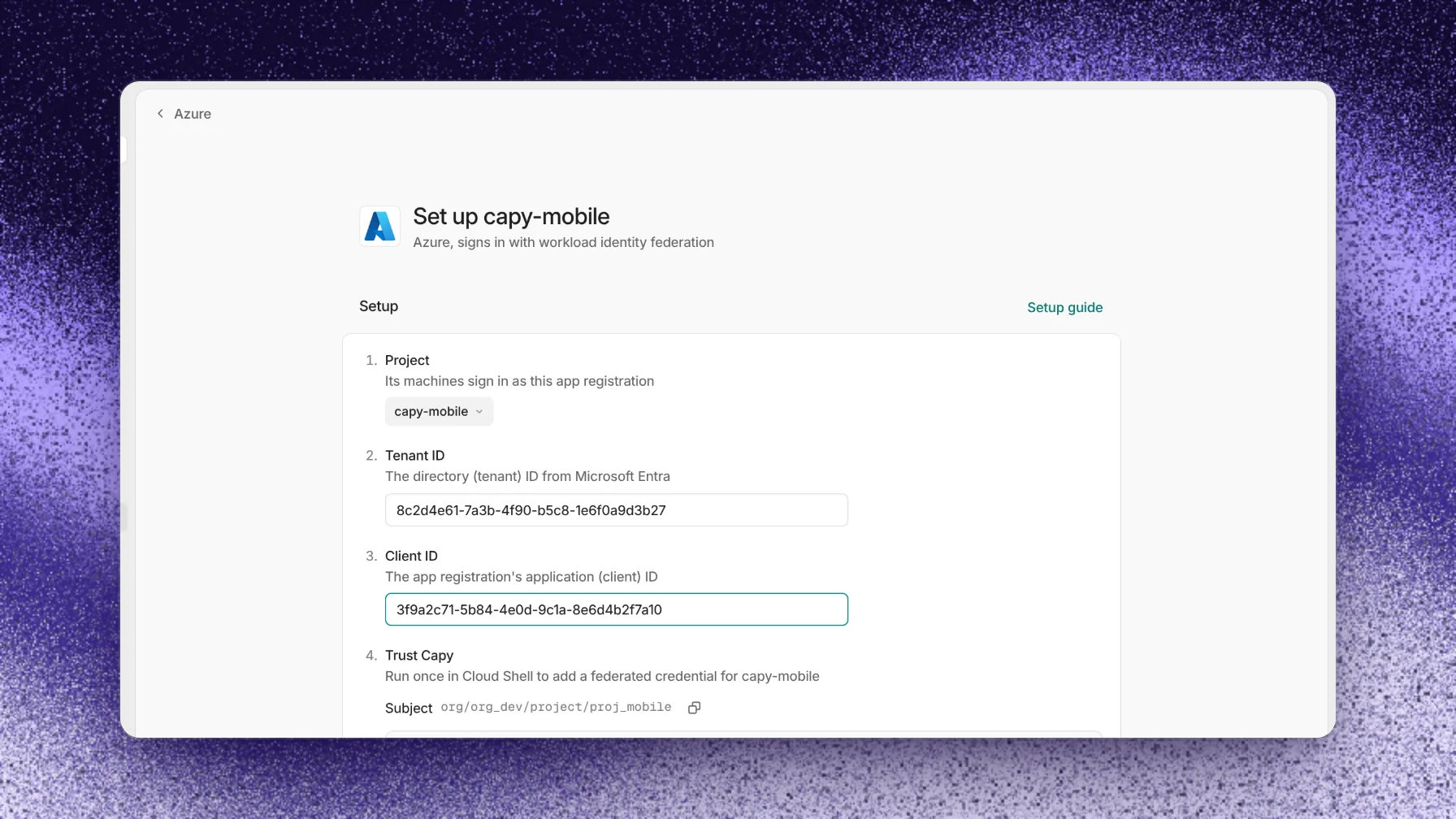
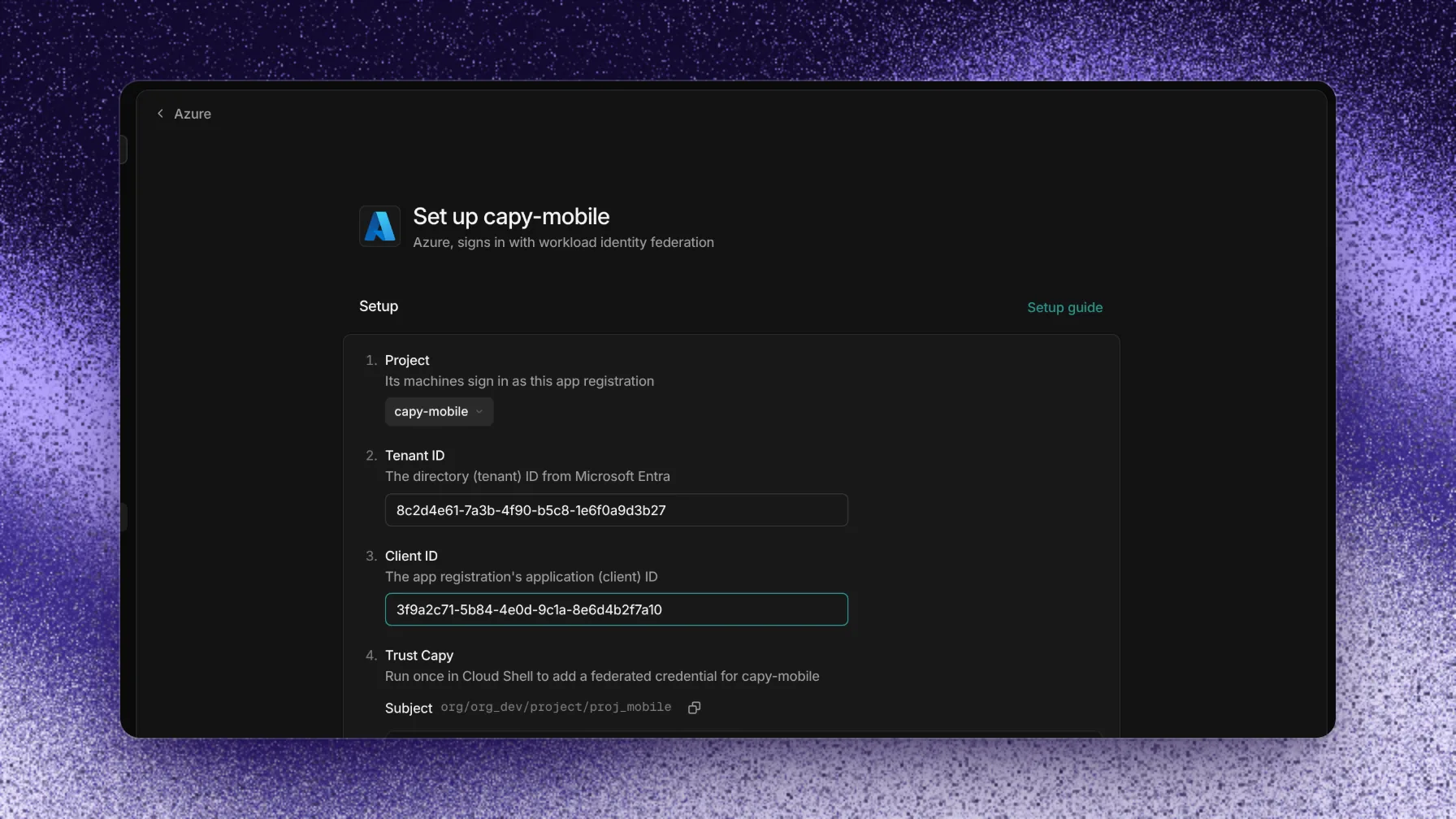
The subject is the value the federated credential must match. Trust Capy
Run this once in Cloud Shell to add a federated credential for the project:
Terminalaz ad app federated-credential create --id '<client id>' \ --parameters '{"name":"capy-<project id>","issuer":"<issuer URL>","subject":"org/<org id>/project/<project id>","audiences":["api://AzureADTokenExchange"]}'If the credential already exists, run
az ad app federated-credential updatewith--federated-credential-id 'capy-<project id>'and the same parameters. For a managed identity, add a federated credential with the issuer URL, this subject, and the audienceapi://AzureADTokenExchange. Entra allows at most 20 federated credentials on one app or managed identity, so one identity serves at most 20 Capy projects.Grant access
Assign the app the roles the agent needs. For example, to give it Reader on the current subscription:
Terminalaz ad sp show --id '<client id>' >/dev/null 2>&1 \ || az ad sp create --id '<client id>' SUBSCRIPTION_ID=$(az account show --query id -o tsv) az role assignment create --assignee '<client id>' \ --role Reader --scope "/subscriptions/$SUBSCRIPTION_ID"Verify
Choose Verify. Capy requests a token for Azure Resource Manager with a test token as the client assertion, then shows the client ID it signed in as.
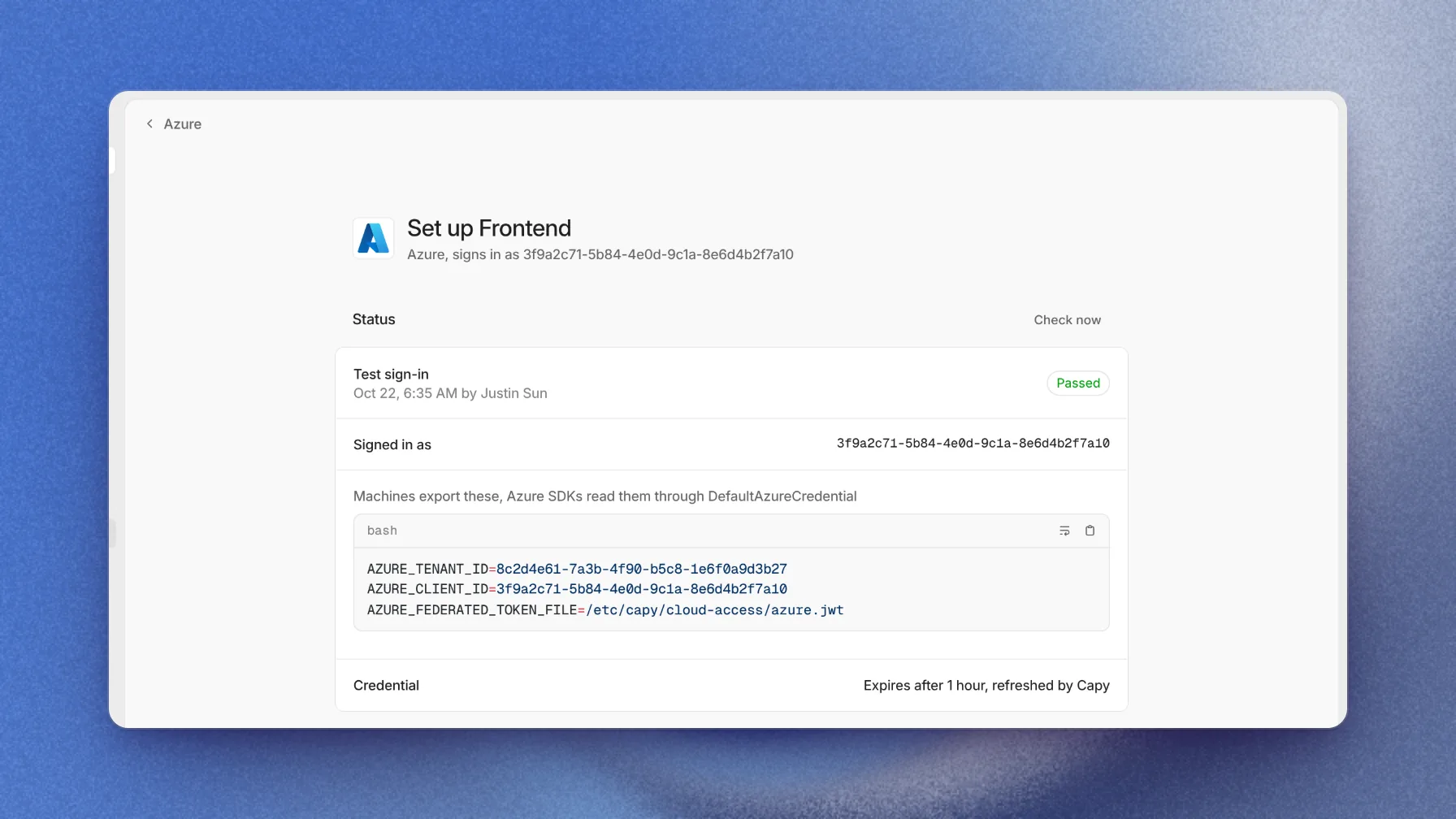
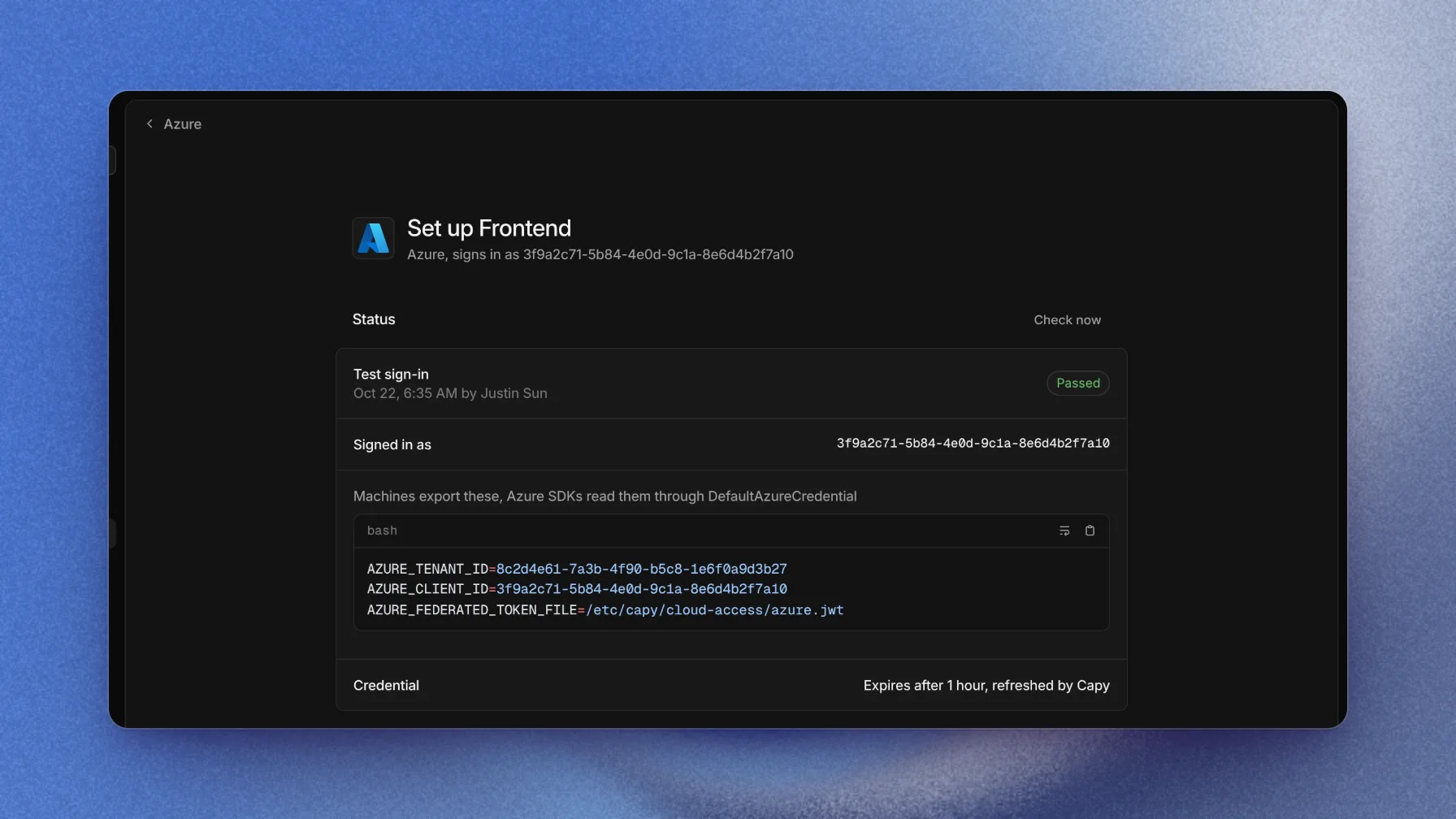
Azure SDKs read these variables through DefaultAzureCredential.
Entra's sign-in log attributes each exchange to the project, because the subject has no thread.
What machines get
Files in /etc/capy/cloud-access/ | Exports |
|---|---|
azure.jwt | AZURE_TENANT_ID, AZURE_CLIENT_ID, and AZURE_FEDERATED_TOKEN_FILE (/etc/capy/cloud-access/azure.jwt) |
Azure SDKs read these variables through DefaultAzureCredential and WorkloadIdentityCredential with no login step. The az CLI isn't preinstalled. When the agent installs it, the login is az login --service-principal -u "$AZURE_CLIENT_ID" -t "$AZURE_TENANT_ID" --federated-token "$(cat "$AZURE_FEDERATED_TOKEN_FILE")".
Revoke access
To stop every exchange at once, delete the capy-<project id> federated credential. To stop Capy from sending tokens, remove the project from Azure in Capy. Access tokens that machines already hold last until they expire.
Troubleshooting
A failed check shows the error from Entra and the likely fix. For a machine with no token files, see OIDC federation troubleshooting.
AADSTS70021
/thread/ part.