

Google Cloud
Machines sign in through Workload Identity Federation and impersonate a service account you choose. Capy uses a pool and a provider that are both named capy. Read OIDC federation first for how the token, the issuer, and refresh work.
Set up Google Cloud
Open Settings → Cloud credentials → Google Cloud and follow these steps. The setup page fills in your issuer URL, organization ID, and project ID, so copy the commands from there. The commands below use placeholders.
Prepare the Google Cloud project
Pick the project that will hold the workload identity pool, and note its project number from the console dashboard. Enable the IAM, Resource Manager, Service Account Credentials, and Security Token Service APIs in that project. Create the service account that machines will sign in as, or pick an existing one.
Add the project in Capy
On Google Cloud, choose Add project. Pick the Capy project, then enter the Service account email and the Project number.
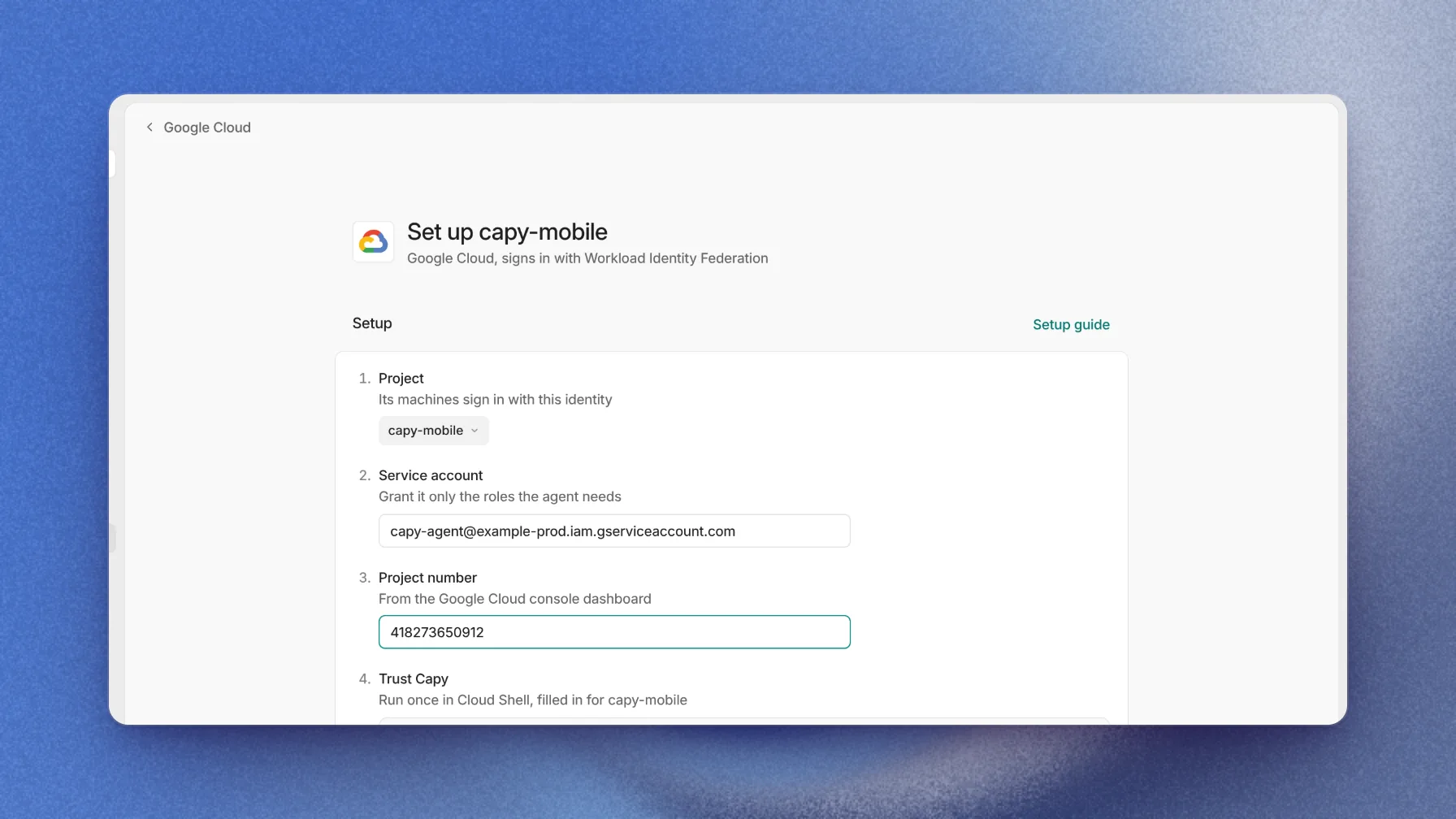
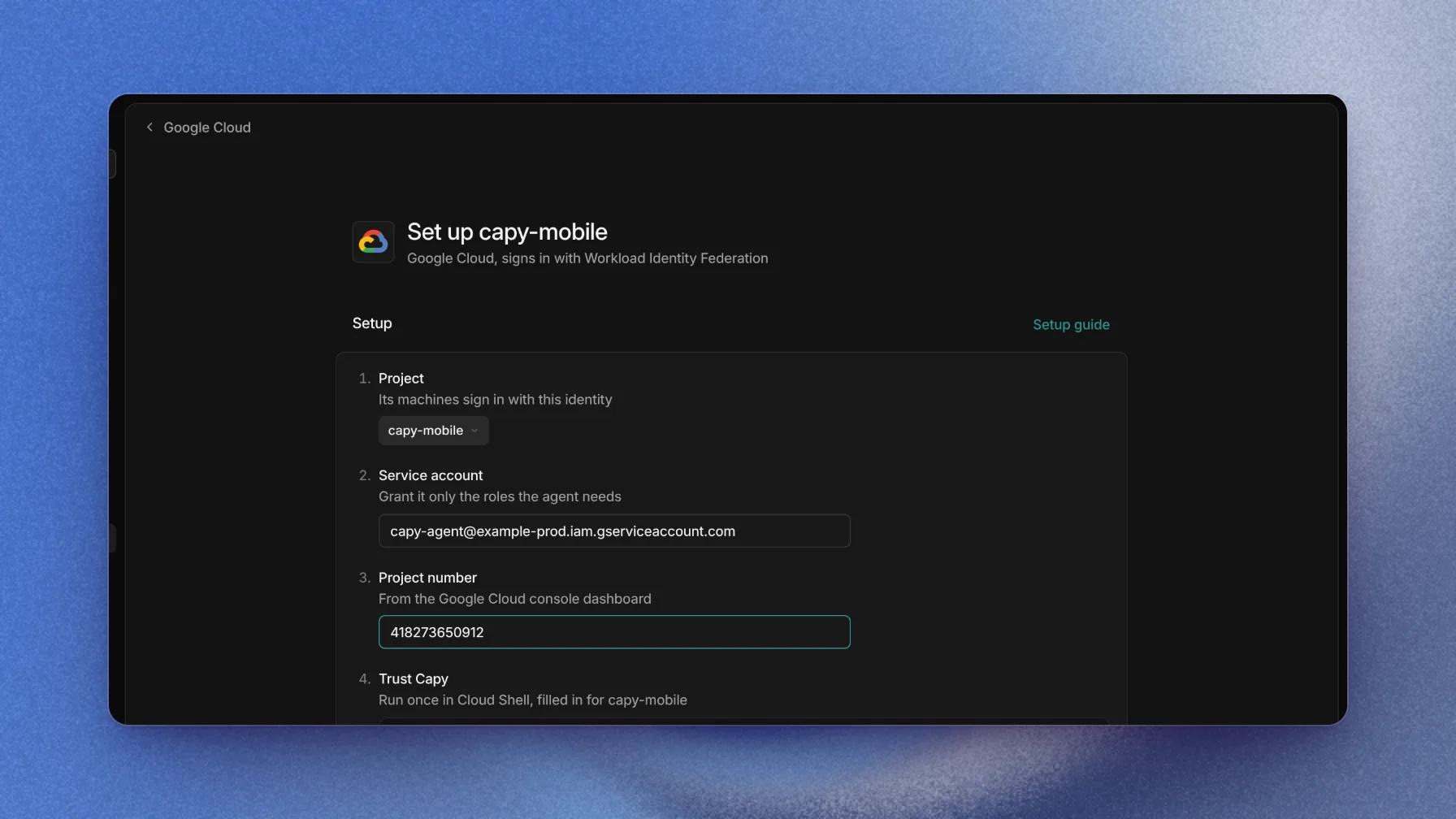
The Trust Capy commands appear once these fields are valid. Trust Capy
Run the Trust Capy commands once in Cloud Shell:
Terminalgcloud iam workload-identity-pools create capy \ --location=global --display-name=Capy --project=<project number> gcloud iam workload-identity-pools providers create-oidc capy \ --location=global --workload-identity-pool=capy --project=<project number> \ --issuer-uri=<issuer URL> \ --attribute-mapping=google.subject=assertion.sub,attribute.org=assertion.org,attribute.project=assertion.project \ --attribute-condition="assertion.org=='<org id>'" gcloud iam service-accounts add-iam-policy-binding \ <service account email> \ --role=roles/iam.workloadIdentityUser \ --member=principalSet://iam.googleapis.com/projects/<project number>/locations/global/workloadIdentityPools/capy/attribute.project/<project id>The attribute condition accepts only your organization's tokens. The
principalSetbinding lets only this Capy project's machines impersonate the service account. The provider keeps Google's default audience,https://iam.googleapis.com/projects/<project number>/locations/global/workloadIdentityPools/capy/providers/capy, which is the audience Capy puts in the token.Grant access
Give the service account the roles the agent needs. For example, to let the agent read logs:
Terminalgcloud projects add-iam-policy-binding <project number> \ --member=serviceAccount:<service account email> \ --role=roles/logging.viewerVerify
Choose Verify. Capy exchanges a test token, impersonates the service account for 5 minutes, and lists which of 14 common permissions it has, such as Read logs and Connect to Cloud SQL.
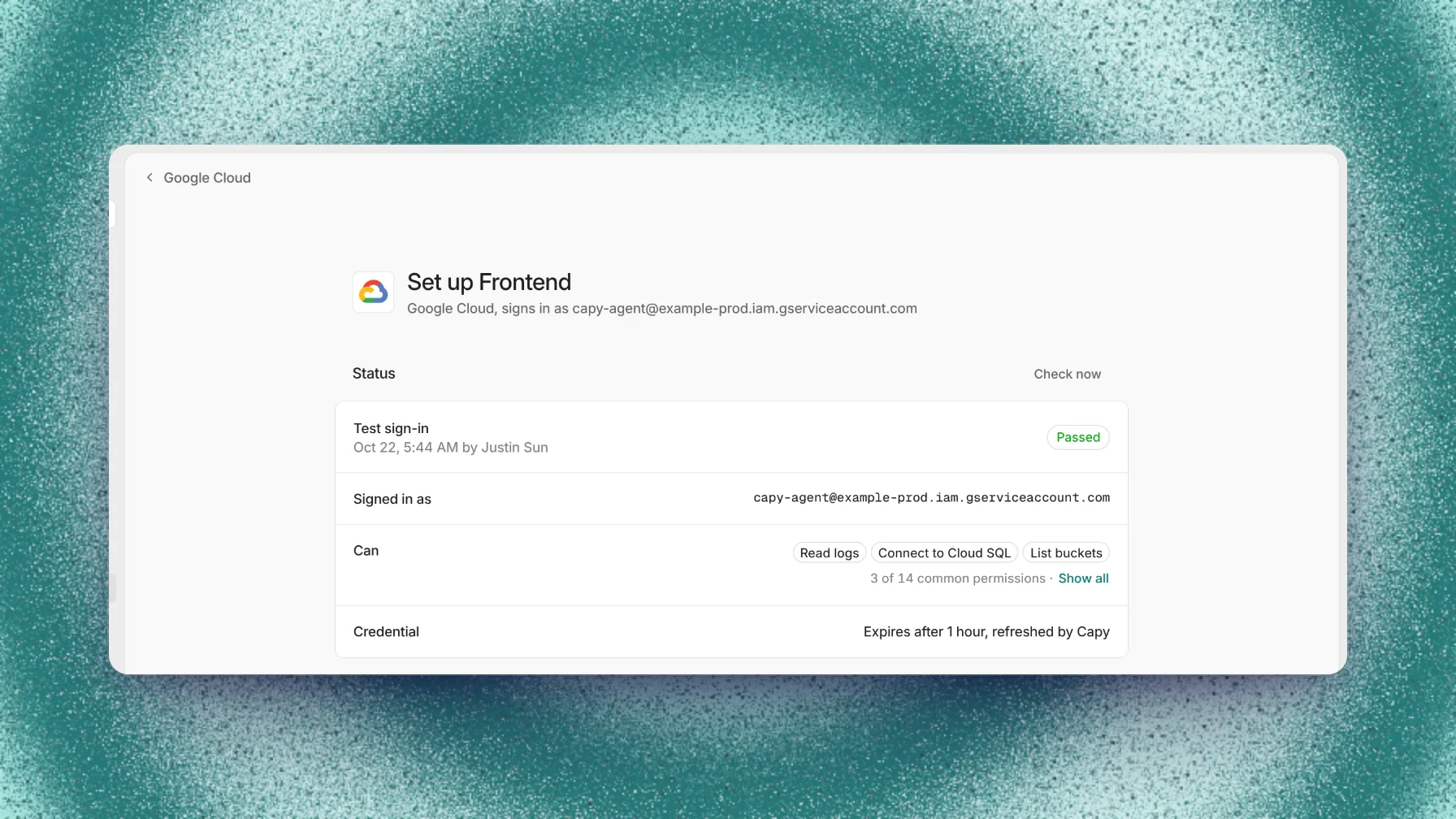
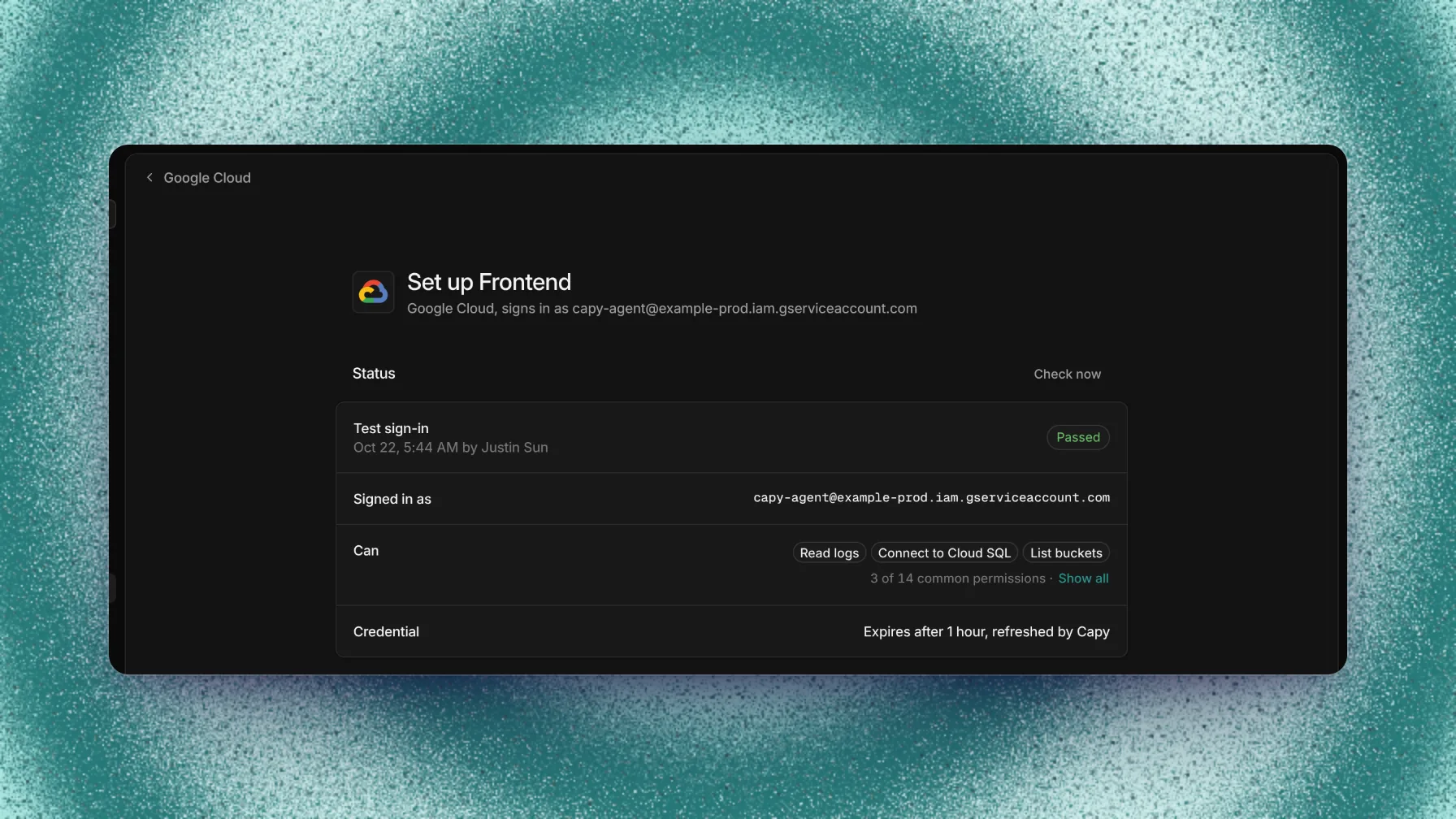
A passed check shows the service account and what it can do.
Cloud Audit Logs record the caller as principal://iam.googleapis.com/projects/<project number>/locations/global/workloadIdentityPools/capy/subject/org/<org id>/project/<project id>/thread/<thread code>.
What machines get
Files in /etc/capy/cloud-access/ | Exports |
|---|---|
gcp.jwt, gcp.json | GOOGLE_APPLICATION_CREDENTIALS and CLOUDSDK_AUTH_CREDENTIAL_FILE_OVERRIDE, both /etc/capy/cloud-access/gcp.json |
gcp.json is a Google external account credential file. Google client libraries read it, exchange the token, and impersonate the service account on their own. The gcloud CLI isn't preinstalled. When the agent installs it, CLOUDSDK_AUTH_CREDENTIAL_FILE_OVERRIDE points it at the same file.
Revoke access
To stop every exchange at once, disable the capy provider in the capy pool. To stop one project, remove its roles/iam.workloadIdentityUser binding from the service account. To stop Capy from sending tokens, remove the project from Google Cloud in Capy.
Troubleshooting
A failed check shows the error from Google and the likely fix. For a machine with no token files, see OIDC federation troubleshooting.
Rejected by the attribute condition
Audience or invalid_target error
Permission denied on generateAccessToken
roles/iam.workloadIdentityUser binding doesn't include this Capy project. Run the binding command from Trust Capy.