

HashiCorp Vault
Machines log in with Vault's JWT auth method. Capy's servers never call your Vault, so the check runs from a thread instead. Your Vault server must reach the discovery and JWKS URLs over the internet to verify tokens. Machines reach Vault directly, or through your tailnet with Tailscale. Read OIDC federation first for how the token, the issuer, and refresh work.
Set up HashiCorp Vault
Open Settings → Cloud credentials → Vault and follow these steps. The setup page fills in your issuer URL, organization ID, and project ID, so copy the commands from there. The commands below use placeholders.
Add the project in Capy
On Vault, choose Add project. Pick the Capy project, then enter:
- Vault address: an
httpsURL, for examplehttps://vault.example.com. - Role: the JWT auth role machines log in with. The default is
capy-<project id>, one role per project, so another project's setup never replaces it. - Auth mount: where the JWT auth method is enabled. The default is
capy. Use a mount that only Capy uses, because its config trusts Capy's issuer alone. - Namespace: optional. HCP Vault uses
admin. - Audience: the value for the role's
bound_audiences. The default is the Vault address.
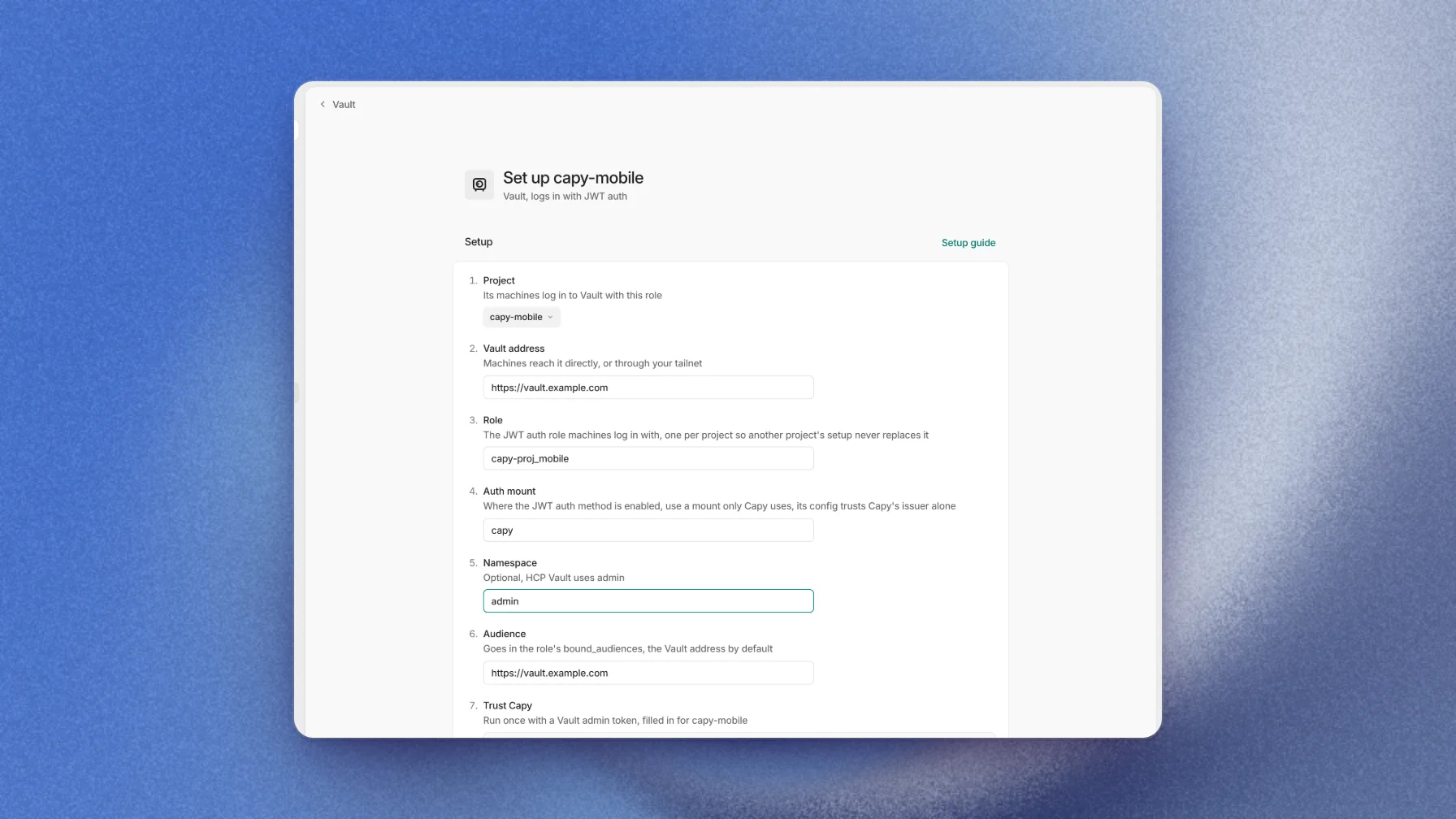
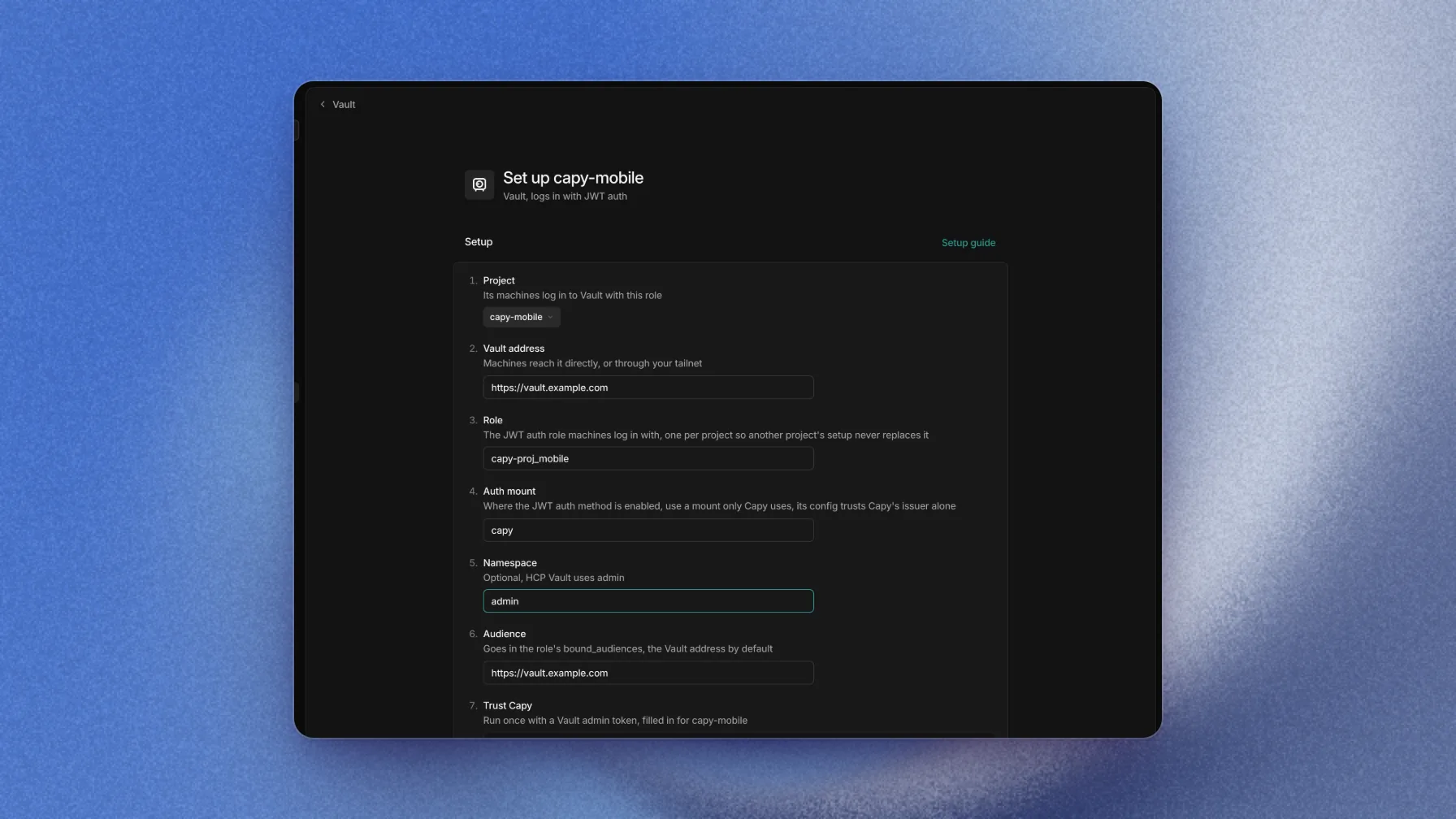
Each field feeds the Trust Capy commands below it. - Vault address: an
Trust Capy
Run these once with a Vault admin token:
TerminalISSUER='<issuer URL>' export VAULT_ADDR='https://vault.example.com' vault auth enable -path='capy' jwt vault write 'auth/capy/config' oidc_discovery_url="$ISSUER" bound_issuer="$ISSUER" vault write 'auth/capy/role/capy-<project id>' - <<'EOF' { "role_type": "jwt", "user_claim": "project", "bound_audiences": ["https://vault.example.com"], "bound_claims_type": "glob", "bound_claims": { "sub": "org/<org id>/project/<project id>/thread/*" }, "claim_mappings": { "thread": "thread", "machine": "machine" }, "token_policies": ["capy-<project id>-read"], "token_ttl": "1h", "token_max_ttl": "1h" } EOFVault matches
bound_claimsas a glob, so the role accepts every thread in this project and no other project.claim_mappingscopies the thread code and machine ID into the token's metadata, which Vault's audit log records.Grant access
Write the policy the role names, with the paths the agent needs:
Terminalvault policy write 'capy-<project id>-read' - <<'EOF' path "secret/data/capy-<project id>/*" { capabilities = ["read"] } EOFVerify from a thread
Choose Save, then Verify from a thread. Capy opens a new thread in the project that runs the login line and
vault token lookup, and reports the token's display name and policies. The status card shows Checked from a machine.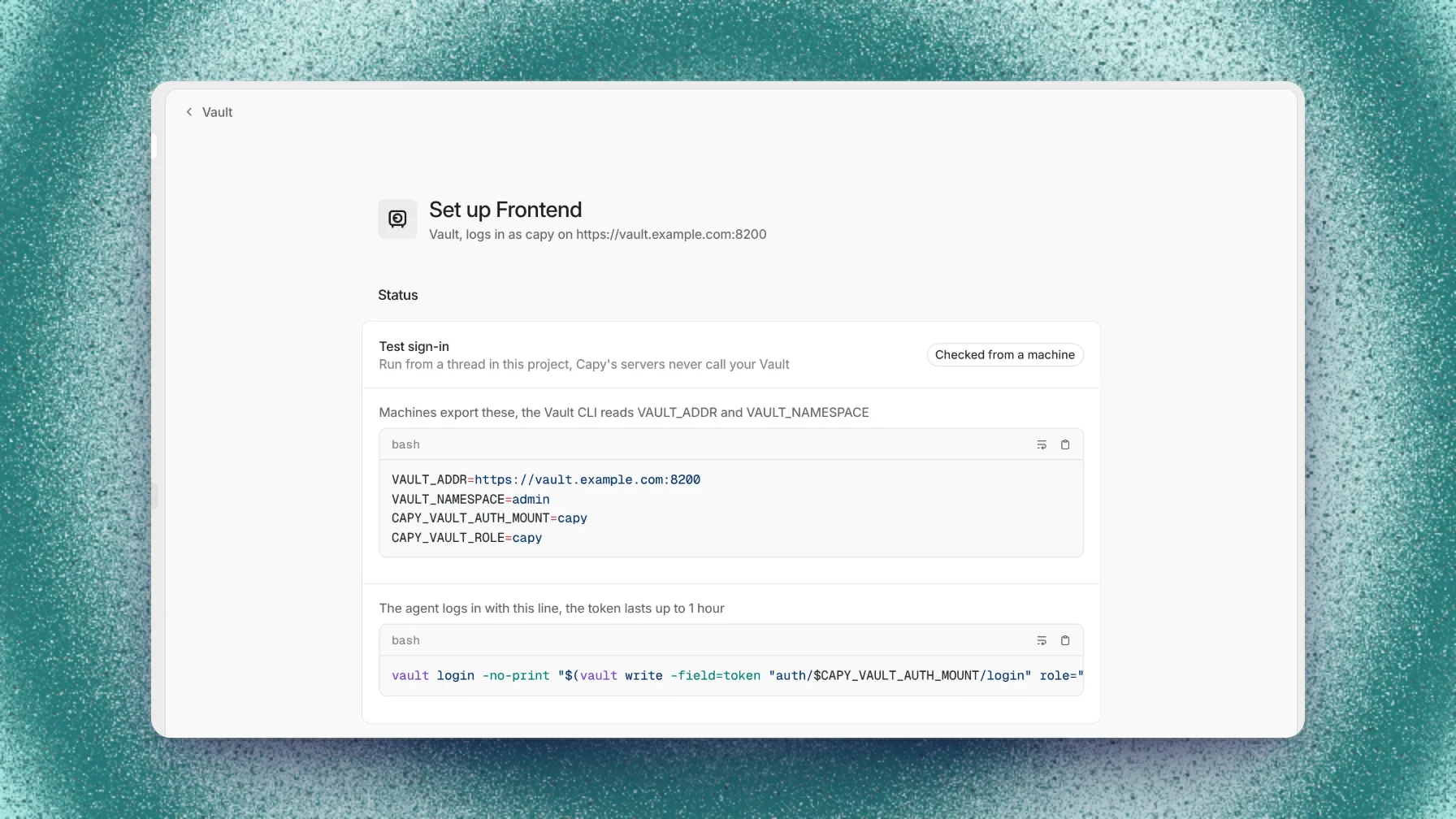
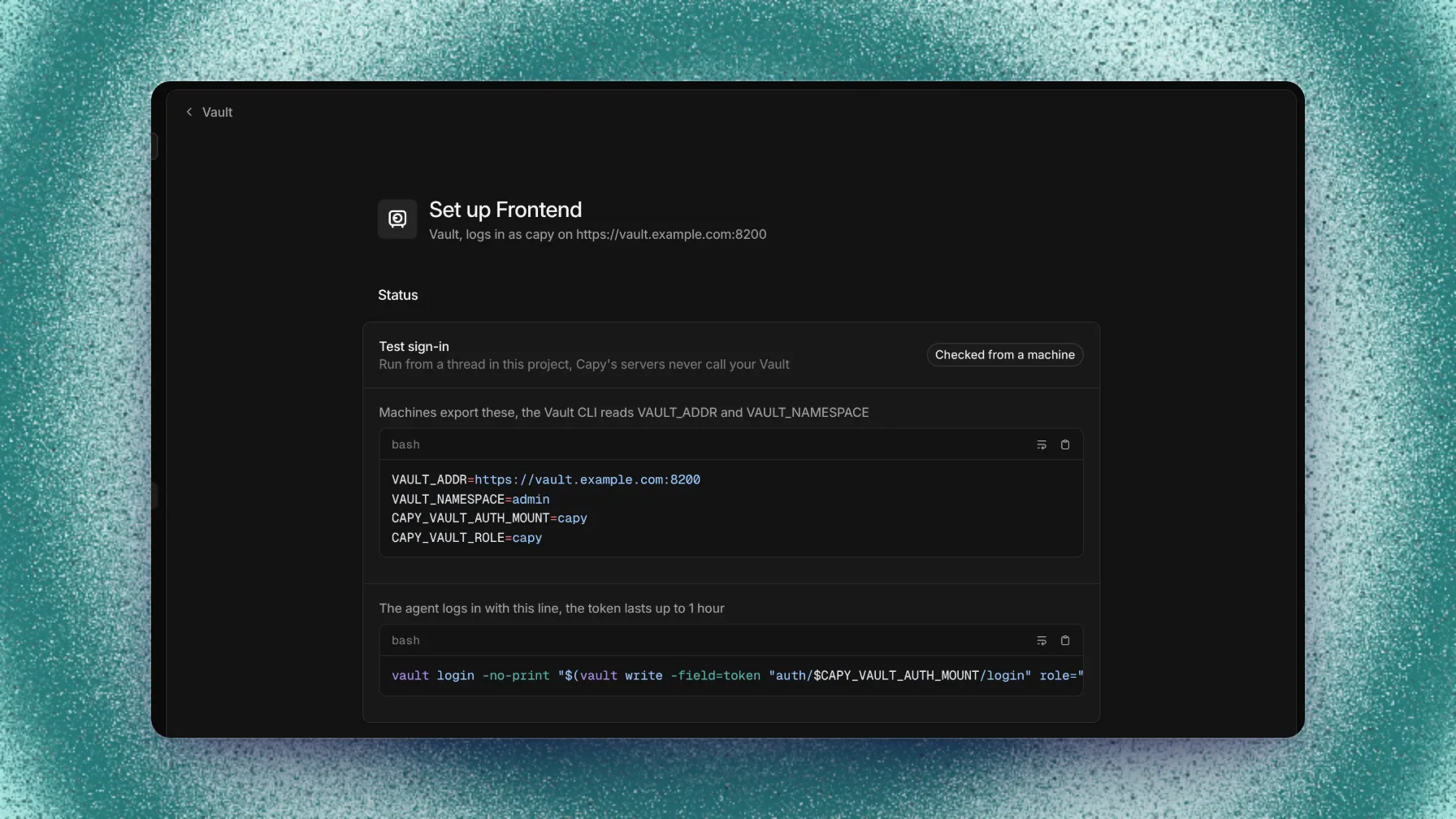
Machines export these variables, and the agent logs in with this line.
What machines get
Files in /etc/capy/cloud-access/ | Exports |
|---|---|
vault.jwt | VAULT_ADDR, VAULT_NAMESPACE when set, CAPY_VAULT_AUTH_MOUNT, and CAPY_VAULT_ROLE |
The Vault CLI is preinstalled on machines. The CLI doesn't read a token file, so the agent logs in with this line, which leaves a Vault token in ~/.vault-token for up to 1 hour:
vault login -no-print "$(vault write -field=token "auth/$CAPY_VAULT_AUTH_MOUNT/login" role="$CAPY_VAULT_ROLE" jwt=@/etc/capy/cloud-access/vault.jwt)"Revoke access
To stop every login at once, delete the role or disable the auth mount. To stop Capy from sending tokens, remove the project from Vault in Capy. Vault tokens that machines already hold last until their TTL ends, at most 1 hour.
Troubleshooting
The check runs in a thread, so the thread shows Vault's error. For a machine with no token files, see OIDC federation troubleshooting.
The login from a thread fails
bound_audiences matches the Audience field, that the auth mount and role match the setup, and that your Vault server can reach the discovery URL. If Vault is on a private network, connect machines with Tailscale.