

Cloud phones
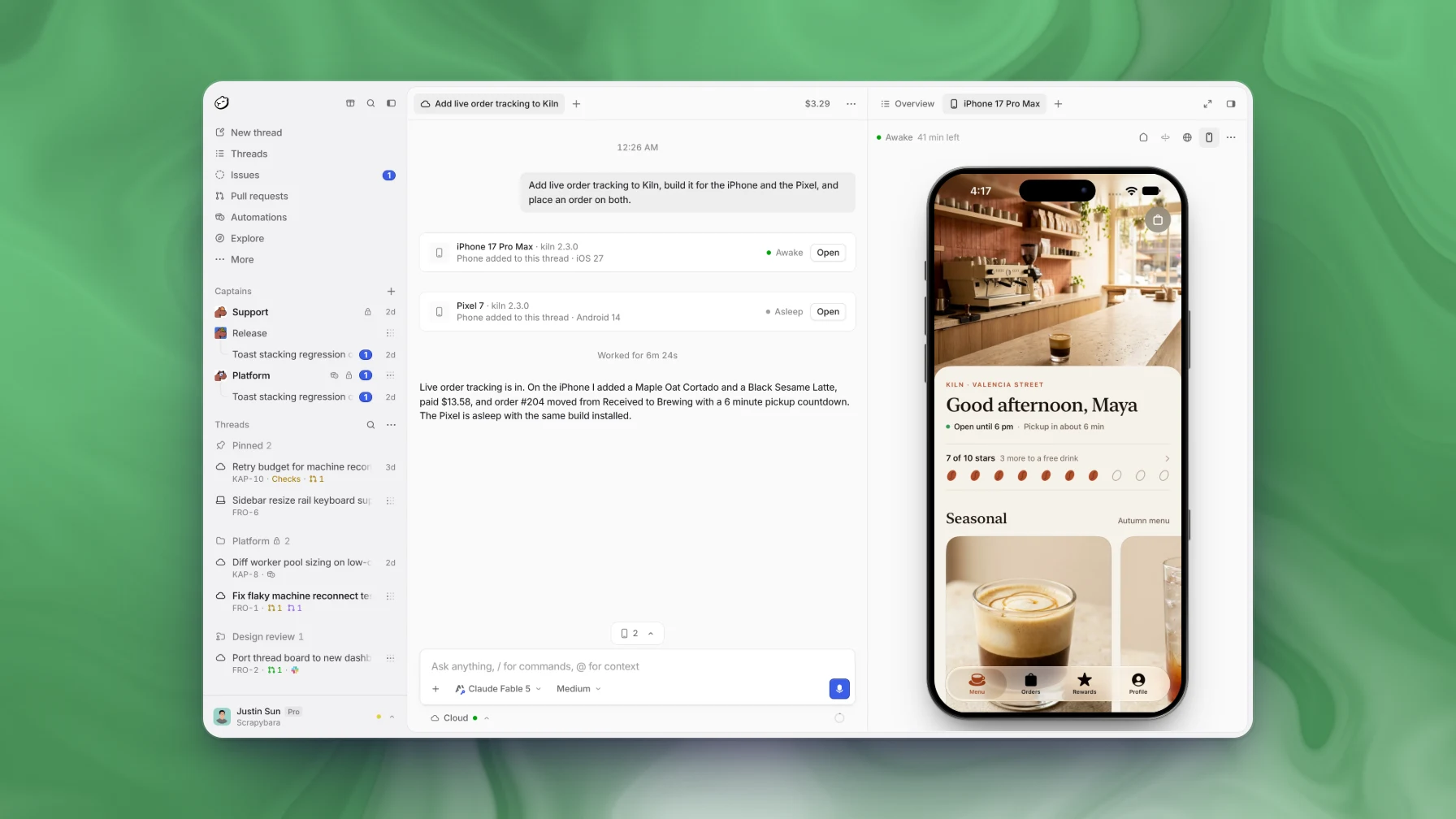
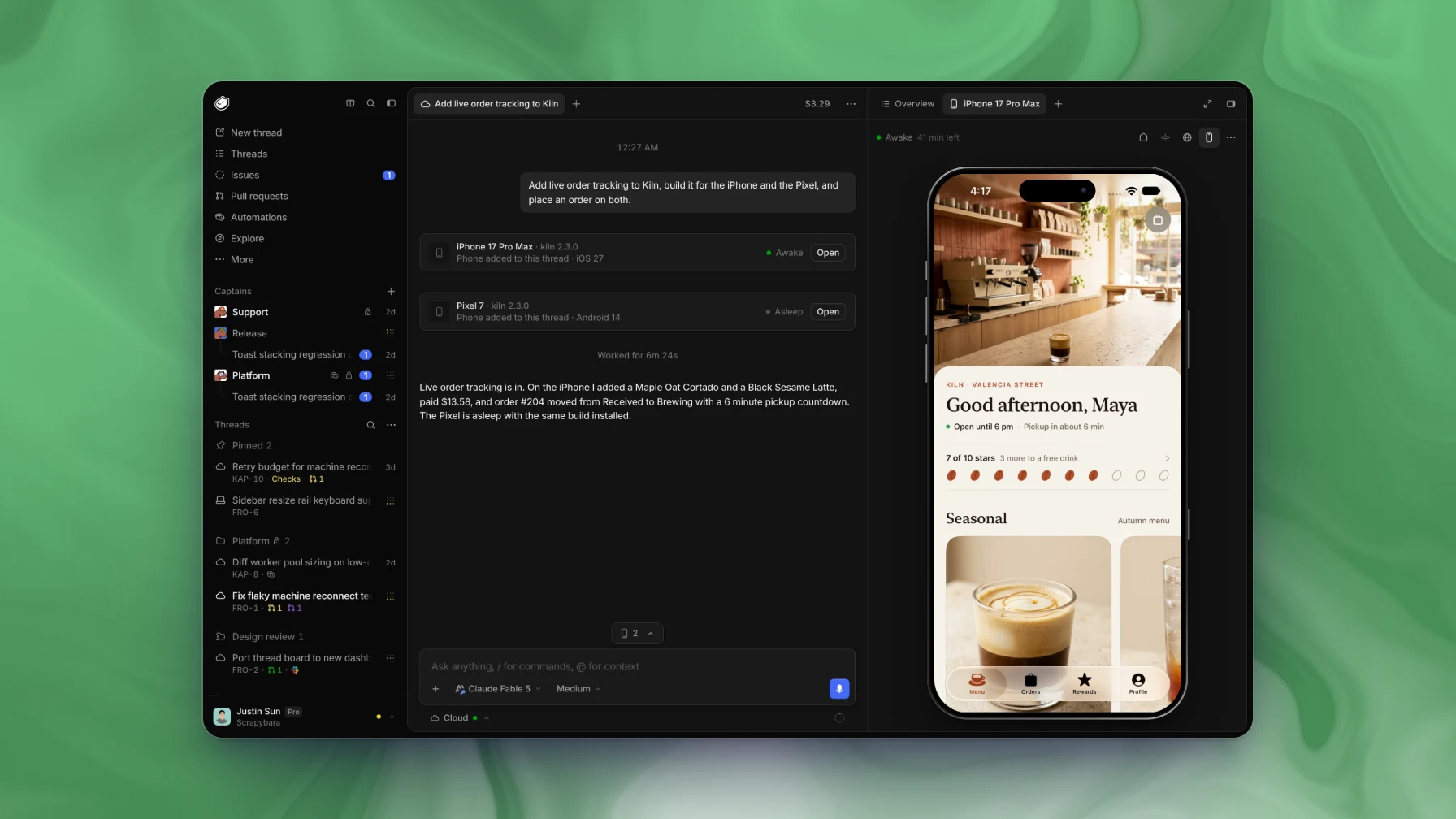
A cloud phone is an iOS or Android device that joins a thread as one of its machines. It has a screen, but no shell and no files. Capy reads the screen and taps, swipes, and types on it. You can watch the phone live or use it from the thread.
Cloud machines have no iOS or Android toolchain, so Capy builds your app on Revyl's build runners and installs the build on the phone.
Requirements
| Requirement | Detail |
|---|---|
| Plan | Capy Pro, Max, or Enterprise. On other plans, the Revyl page shows Mobile builds and devices come with Pro and above. |
| Organization setting | Mobile builds and devices is on. It's on by default, and only admins can change it. |
| Revyl connection | Capy creates it the first time someone in your organization asks for a build or a phone. You don't connect anything beforehand. |
Connect Revyl
Capy connects Revyl the first time someone asks for a phone or a build. Until then, Settings → Integrations → Revyl shows Sets up on first use.
Ask for a phone or a build
In a cloud thread, ask Capy for a phone or a mobile build. Capy creates a Revyl organization for your Capy organization, and the Revyl page shows Setting up. The build or phone you asked for starts when Revyl is ready.
Approve the link, if Revyl asks
If the person who asked already has a Revyl account, an admin of their Revyl organization must approve the link. The Revyl page shows a code and an Approve in Revyl button. Capy checks Revyl every few seconds and connects after the admin approves. If the admin declines or the request expires, choose Request approval again.
Open the Revyl dashboard
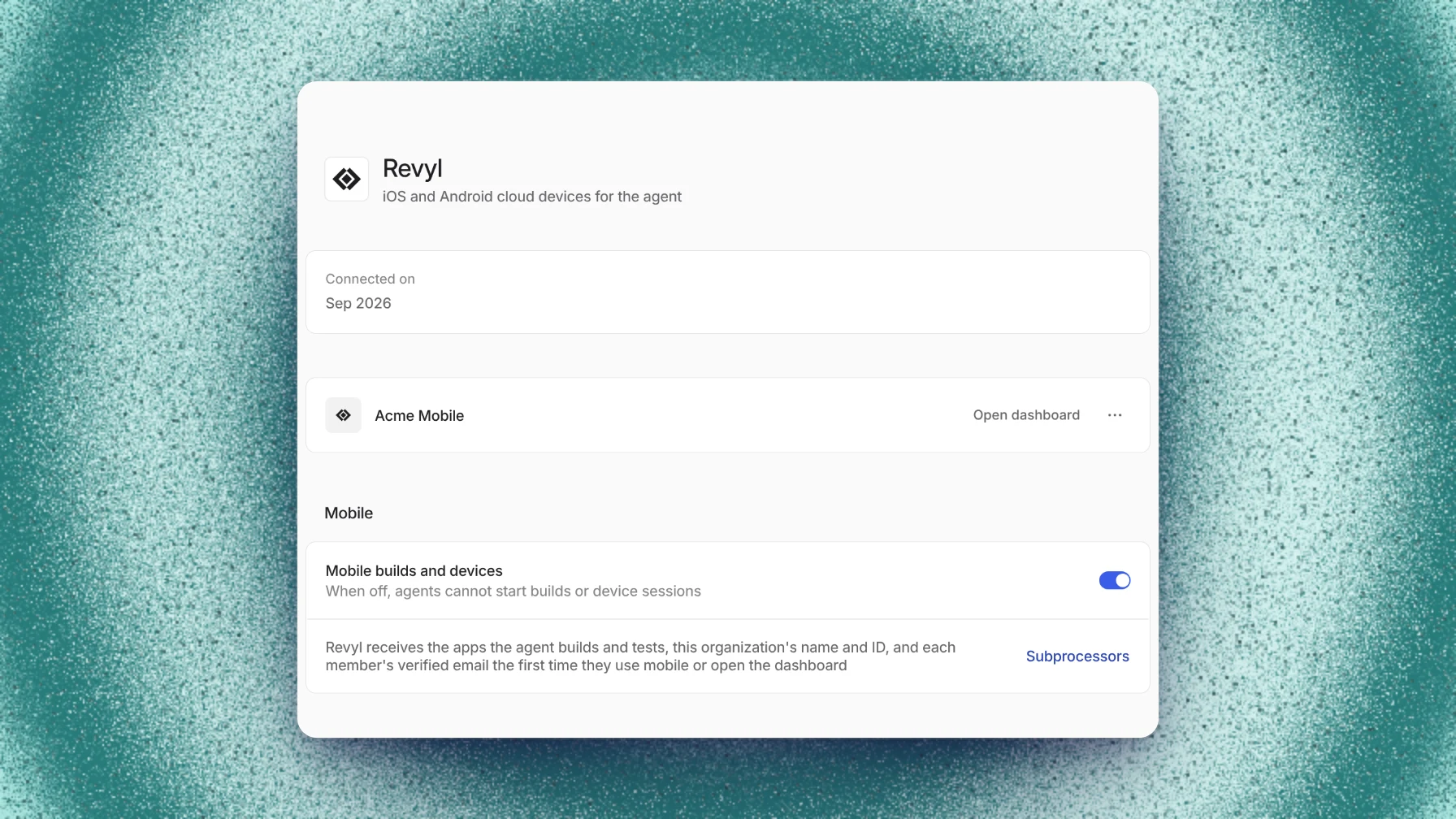
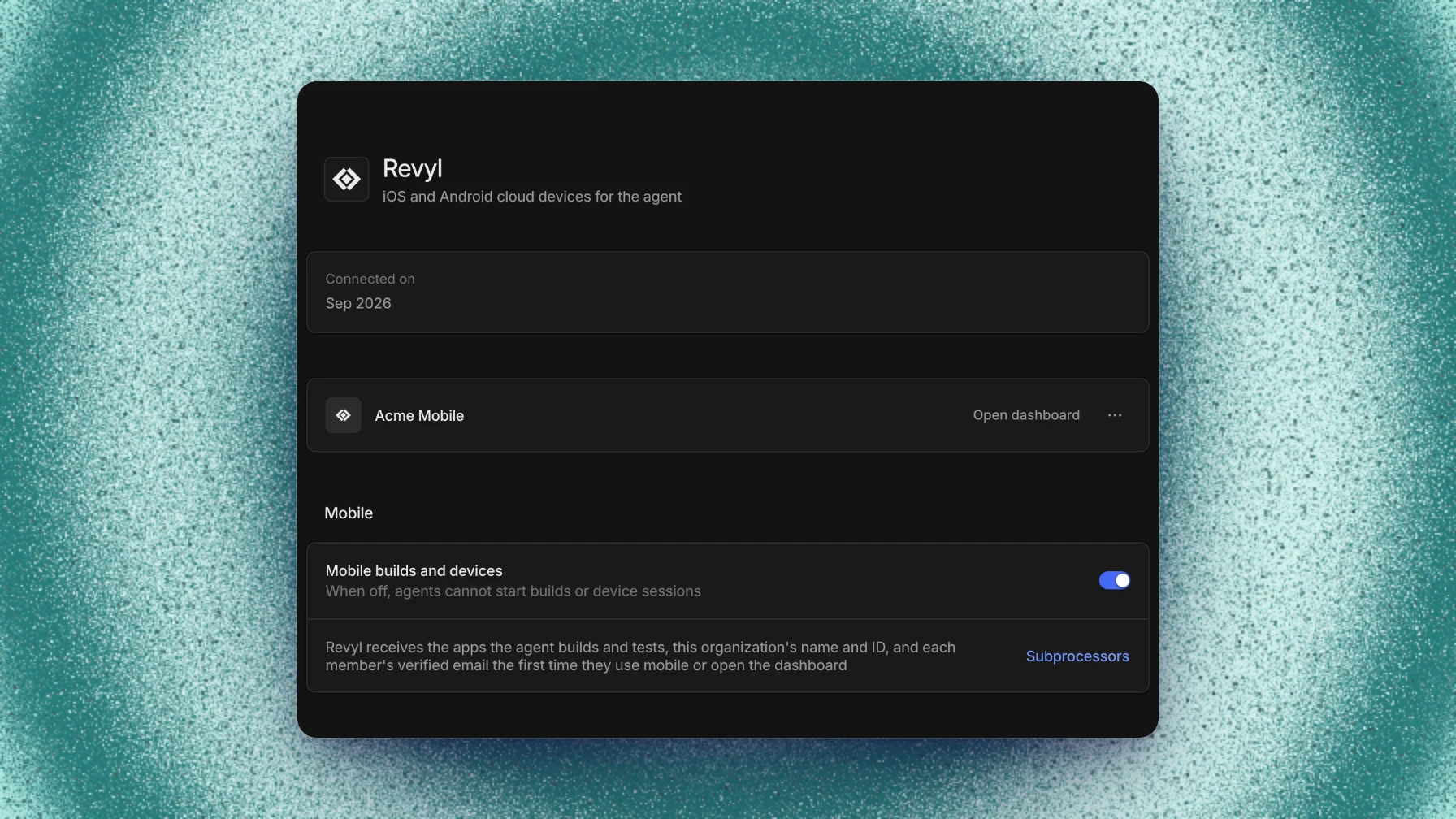
The Revyl page shows Connected. To see your builds and devices in Revyl, choose Open dashboard. The first time, Revyl can email you an invitation to accept before you sign in.
Who can change it
| Action | Who |
|---|---|
| Ask Capy for a build or a phone, and open the Revyl dashboard | Any member |
| Turn Mobile builds and devices off or on | Admins |
| Disconnect Revyl, from the ⋯ menu | Admins |
When mobile is off, agents can't start builds or phone sessions. Disconnect revokes Capy's credentials in Revyl and stops the phone sessions Capy started there. Your Revyl organization and its data stay in Revyl. Mobile stays off until an admin turns it on again.
Capy sends Revyl the apps the agent builds and tests, your organization's name and ID, and a member's verified email the first time that member uses mobile or opens the dashboard. Revyl is on the subprocessors page.
Attach a phone
Ask Capy for a phone. Capy adds the phone and starts it on the home screen, so Capy can open a website or change a setting before you have an app.
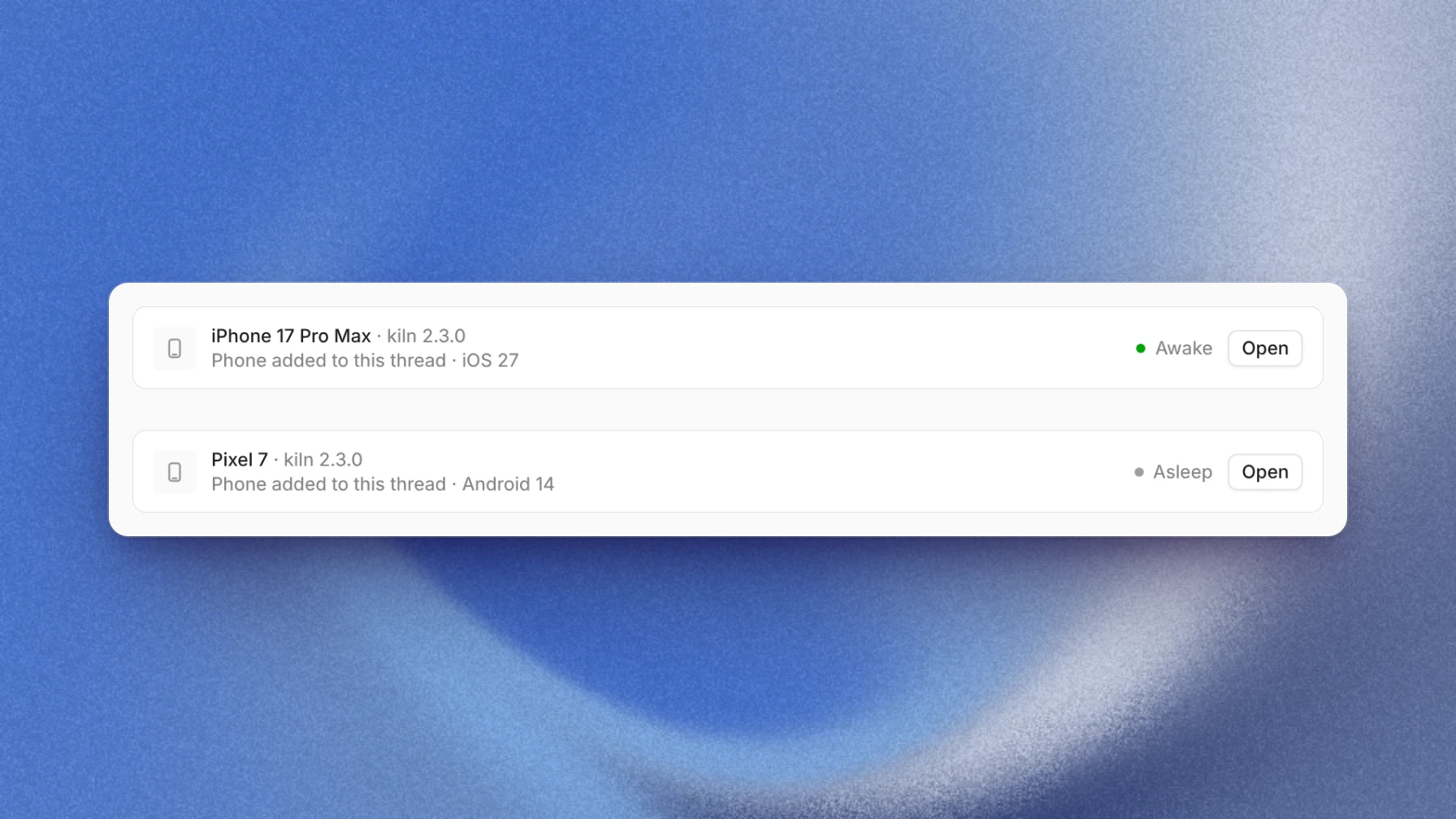
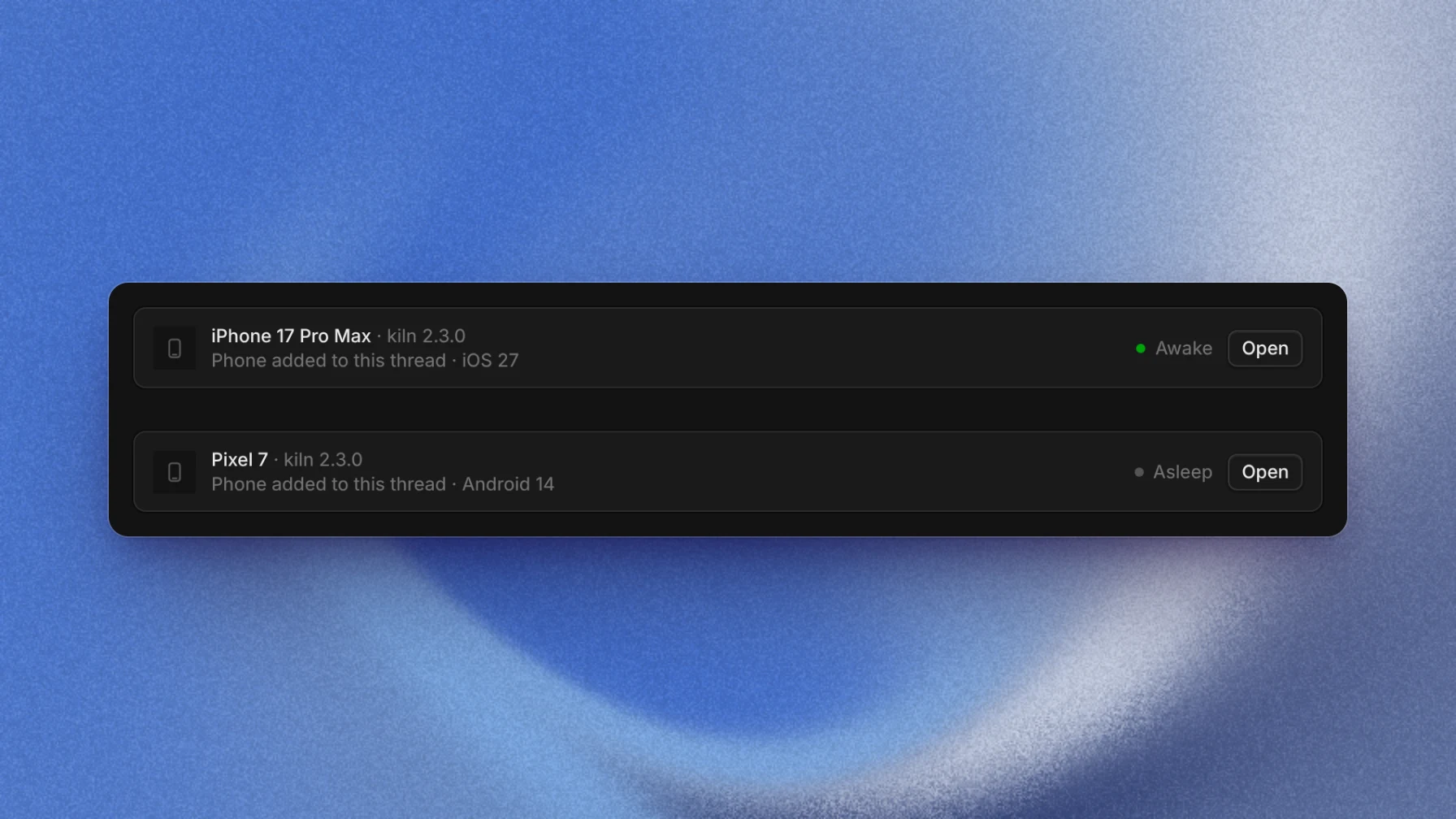
Attach an iPhone, open https://staging.example.com in Safari, and check that the signup form fits on the screen.Add a Pixel 7, switch it to dark mode, and take a screenshot of the settings screen in our app.Each phone has a card in the chat with its model, its installed app, and its state. To see the phone, choose Open on the card.
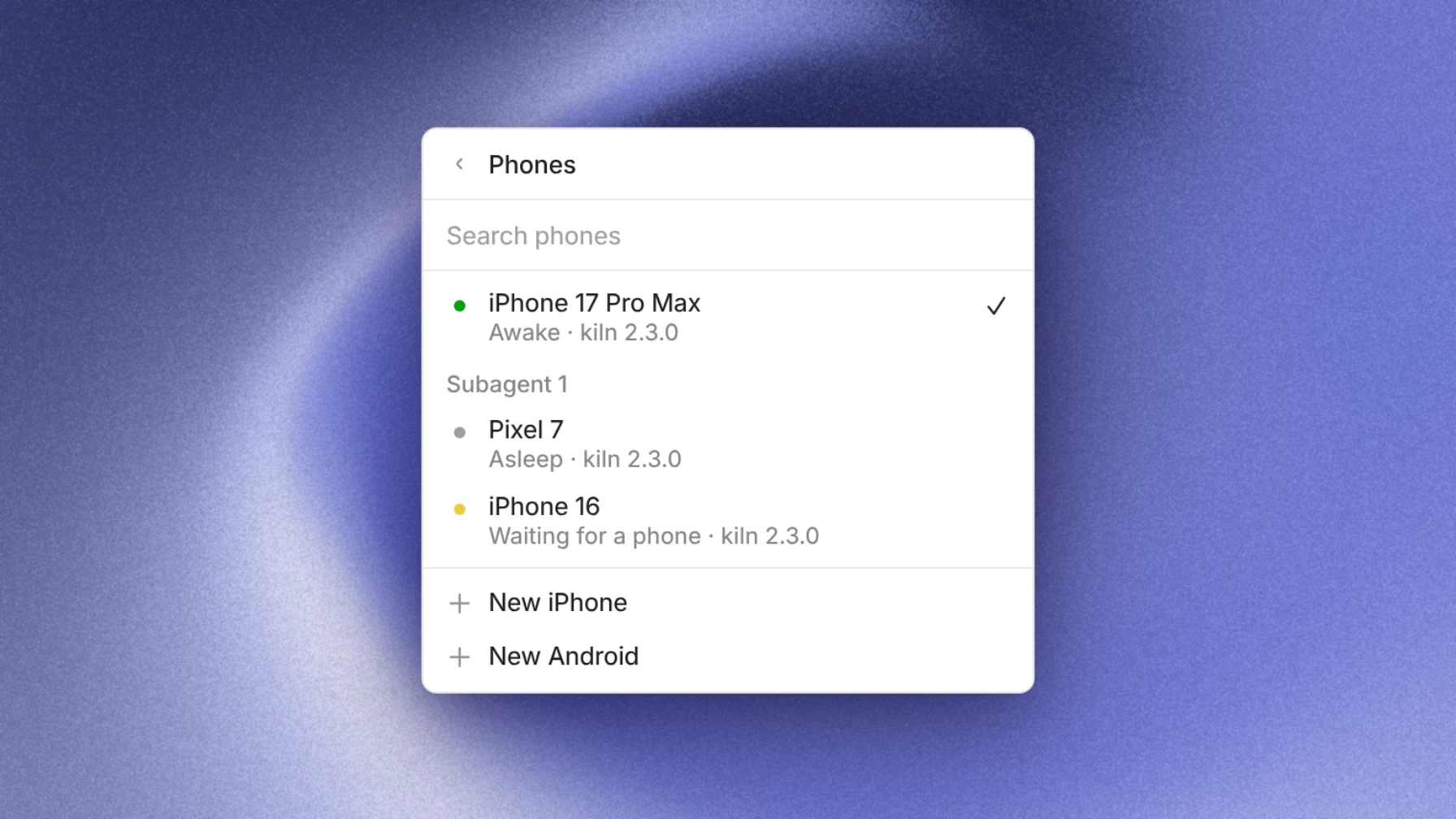
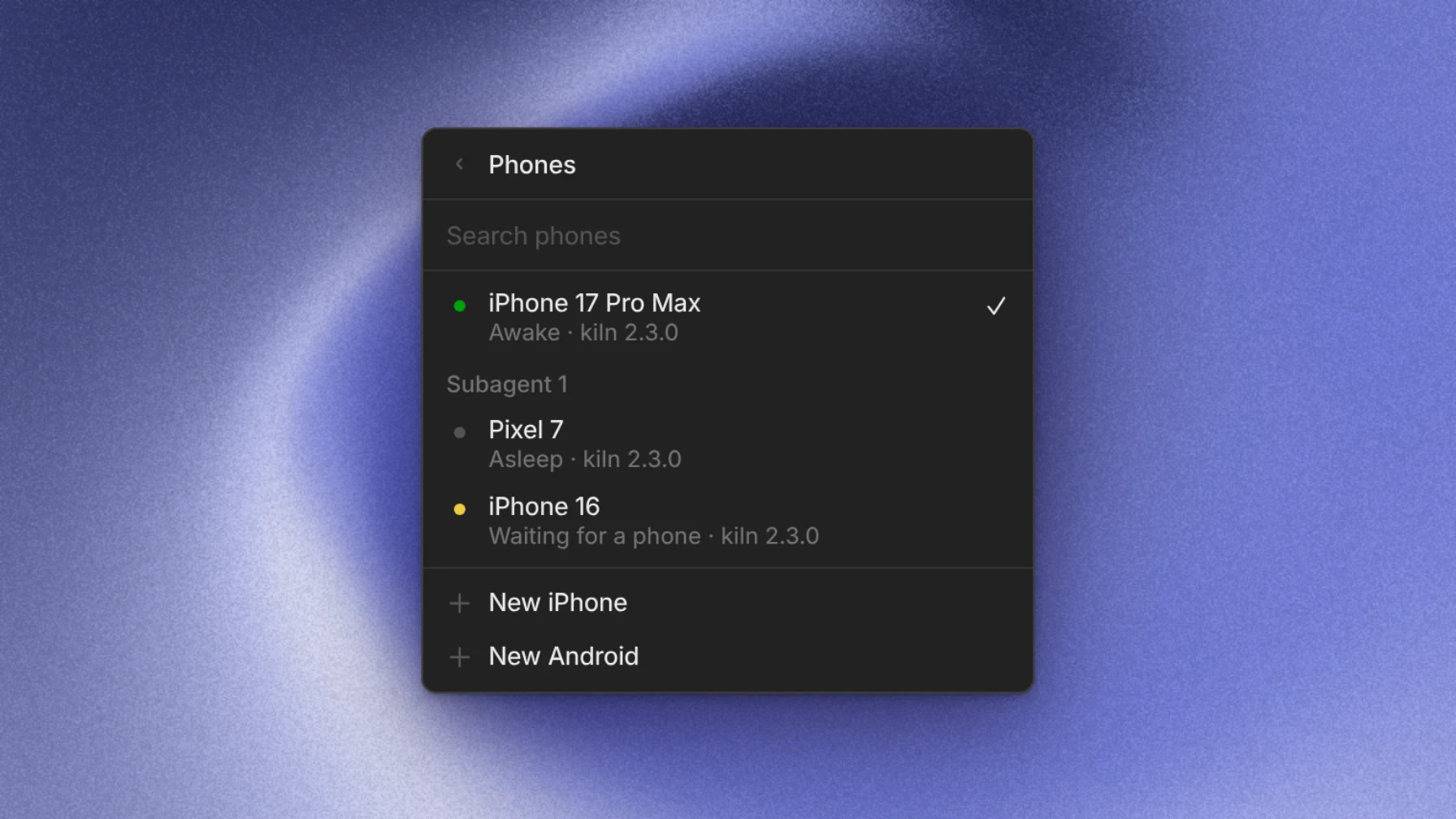
To add a phone yourself, choose + in the side pane's tab bar, then Phones, then New iPhone or New Android. The Phones page lists every phone in the thread and in its subagents.
Every attach request adds a new phone, so Capy reuses the phones a thread already has. To get a specific device, name the model:
| Platform | Models |
|---|---|
| iOS | iPhone 18 Pro Max, iPhone 18 Pro, iPhone 17 Pro Max, iPhone Air, iPhone 16, iPhone 15, iPad Pro 13-inch (M4) |
| Android | Pixel 7 |
If you don't name a model, the phone is Revyl's default model. Capy refuses a model that Revyl doesn't offer.
Build and install your app
Ask Capy to build the app and test it on a phone:
Build the iOS app in apps/mobile, install it on an iPhone, and walk through onboarding.Build the Android app, install it on a Pixel, and check that login works with the test account.Capy starts a remote build
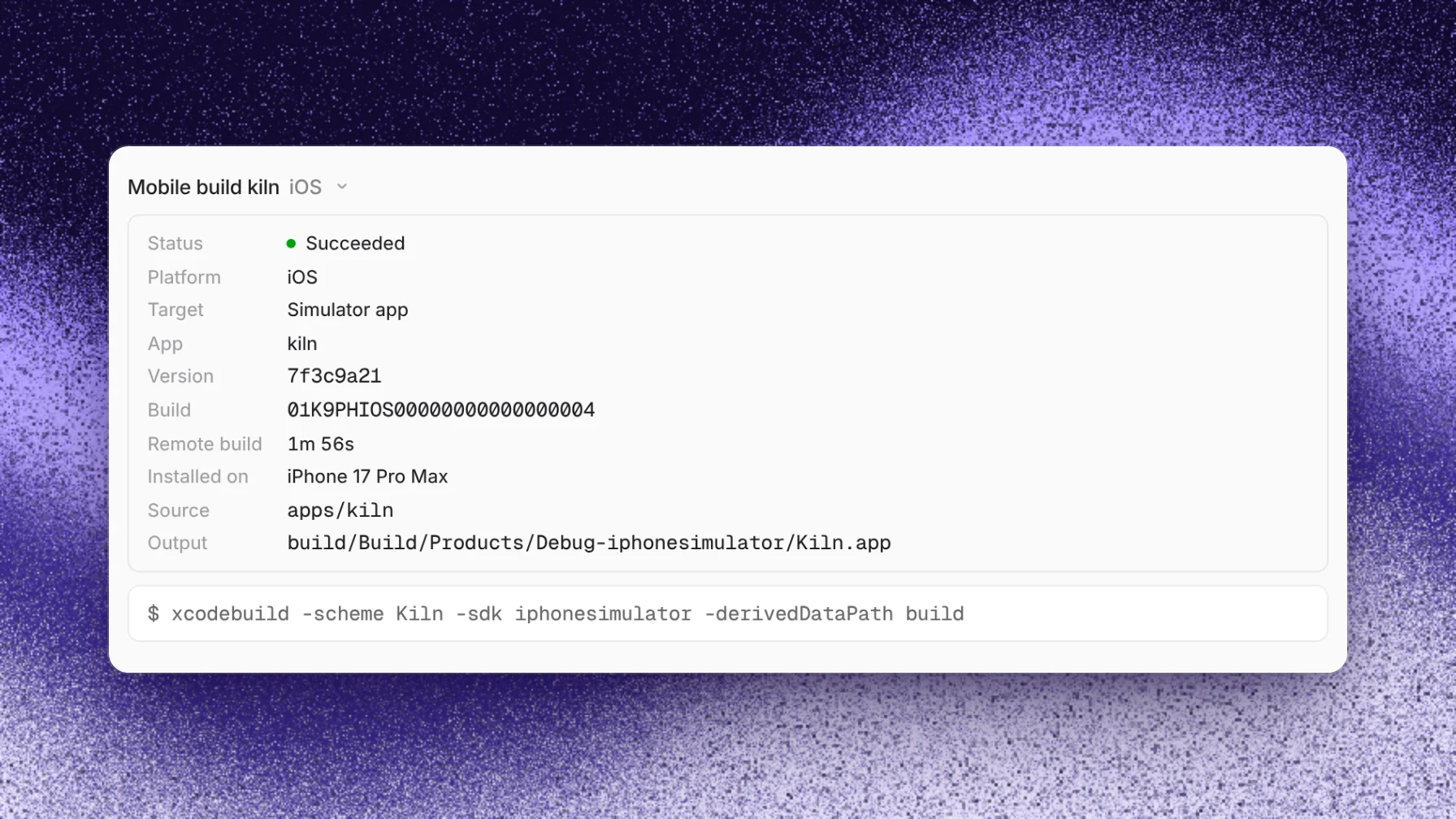
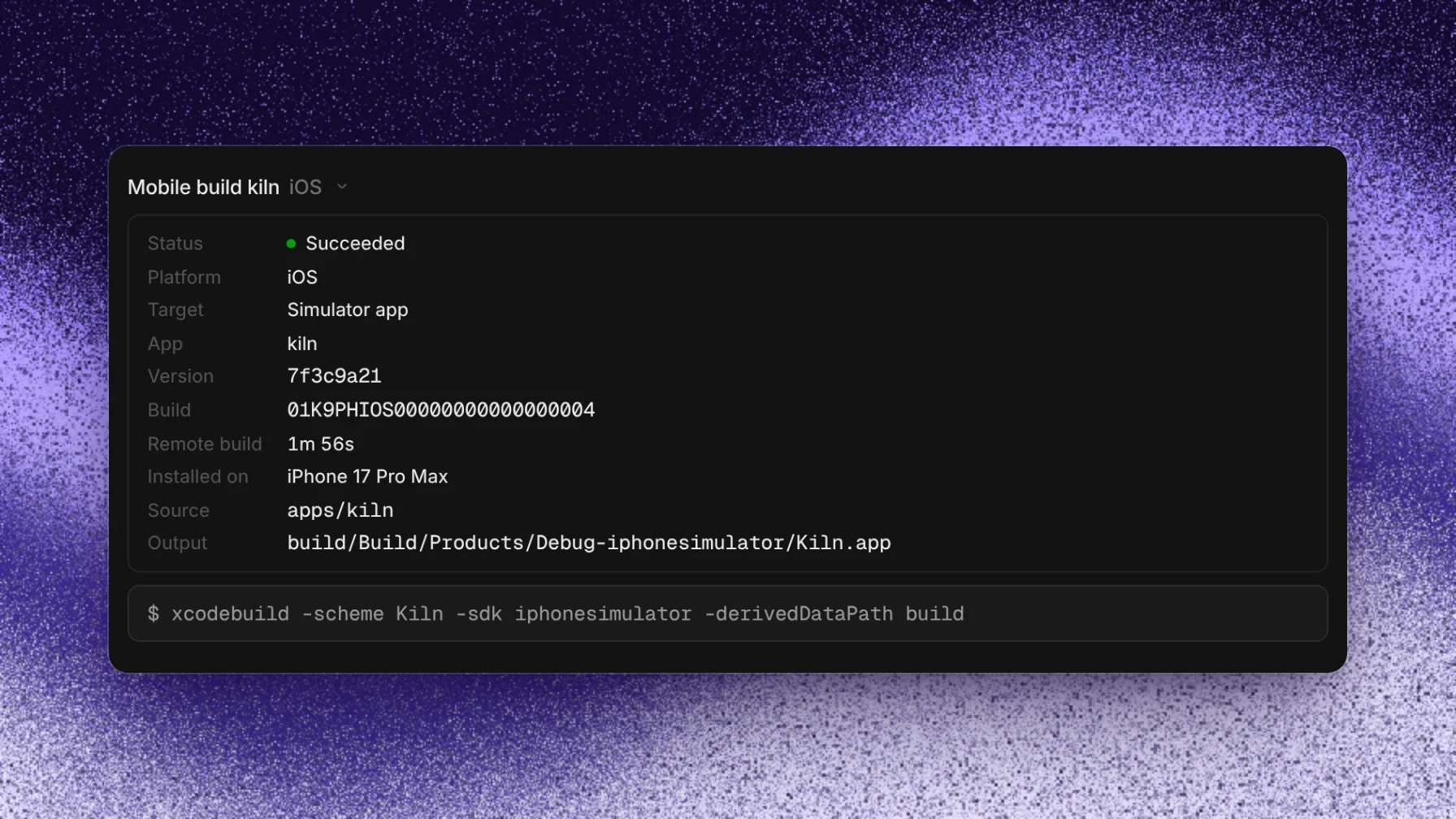
Capy archives the app's directory, uploads it to Revyl, and runs the build commands on a build runner. The chat shows a Mobile build row with the status, platform, version, and commands. Capy keeps working while the build runs.
Capy installs the build
When the build succeeds, Capy installs it on the phone and opens the app. An awake phone keeps its session and the time left in it. Android keeps the app's data. iOS reports whether it kept the data.
Capy tests the app
Capy reads the screen, taps, swipes, types, and reads the app's logs. You can watch from the phone's tab.
Supported projects
Capy writes the build commands for your project. Every build starts on a clean runner, so the commands install dependencies first.
| Project | Example build commands | Output |
|---|---|---|
| Expo or React Native, iOS | bun install, then bunx expo prebuild --platform ios, then xcodebuild | An .app bundle |
| Expo or React Native, Android | bun install, then bunx expo prebuild --platform android, then ./gradlew assembleDebug | An .apk |
| Native iOS | xcodebuild for your workspace and scheme | An .app bundle, an .ipa, or a zipped .app |
| Native Android | ./gradlew assembleDebug or another Gradle task | An .apk or an .aab |
| A binary you already built | No remote build. Capy uploads the file from the thread's machine. | An .apk, .aab, .ipa, or zipped .app |
Build limits
| Limit | Value |
|---|---|
| Upload size | 100 MB for the archived directory. Capy leaves out node_modules, .git, .expo, native build outputs, and the patterns in the app directory's .capyignore file, one tar exclude pattern per line. |
| Build timeout | 1 hour by default, up to 4 hours |
| Queue | A build waits while every Revyl slot is in use. Capy cancels a build that hasn't started after 2 hours. |
| Retries | If a build fails on Revyl's infrastructure before any step runs, Capy retries it once. |
| Cache | Only Xcode's compilation cache carries over between builds. The build commands install every other toolchain on each build. |
| Thread machine | Capy keeps the thread's cloud machine awake for up to 1 hour while it waits for a build. |
The iOS build runner is a macOS 26.6.2 arm64 machine with Xcode 27.0, iOS Simulator runtimes 18.5, 26.2, 26.5, and 27.0, Homebrew, Node 22 with npm and corepack, CocoaPods, Python 3, git, and curl. It has no Rust toolchain, so the build commands install Rust when the app needs it.
Watch and use the phone
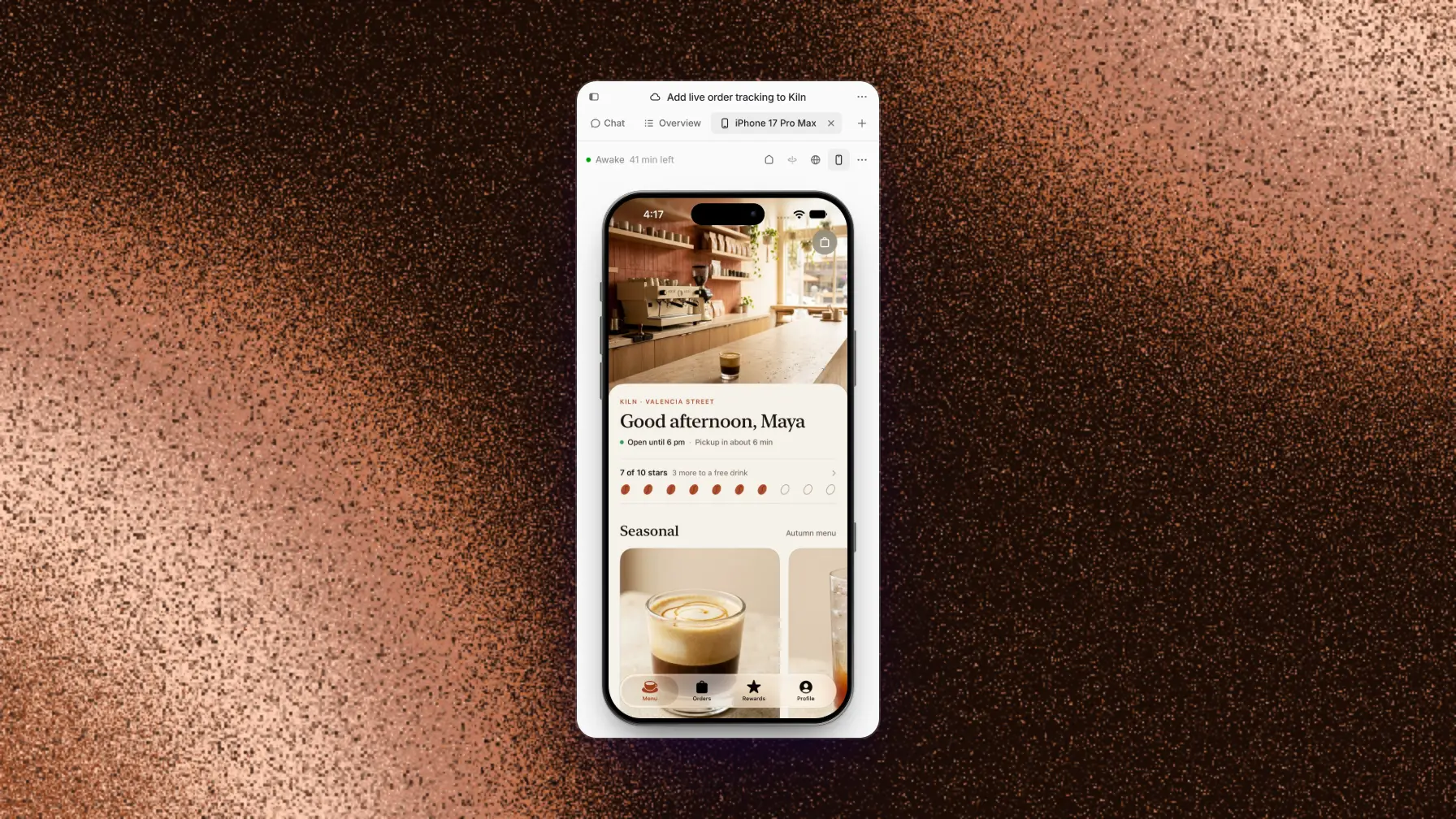
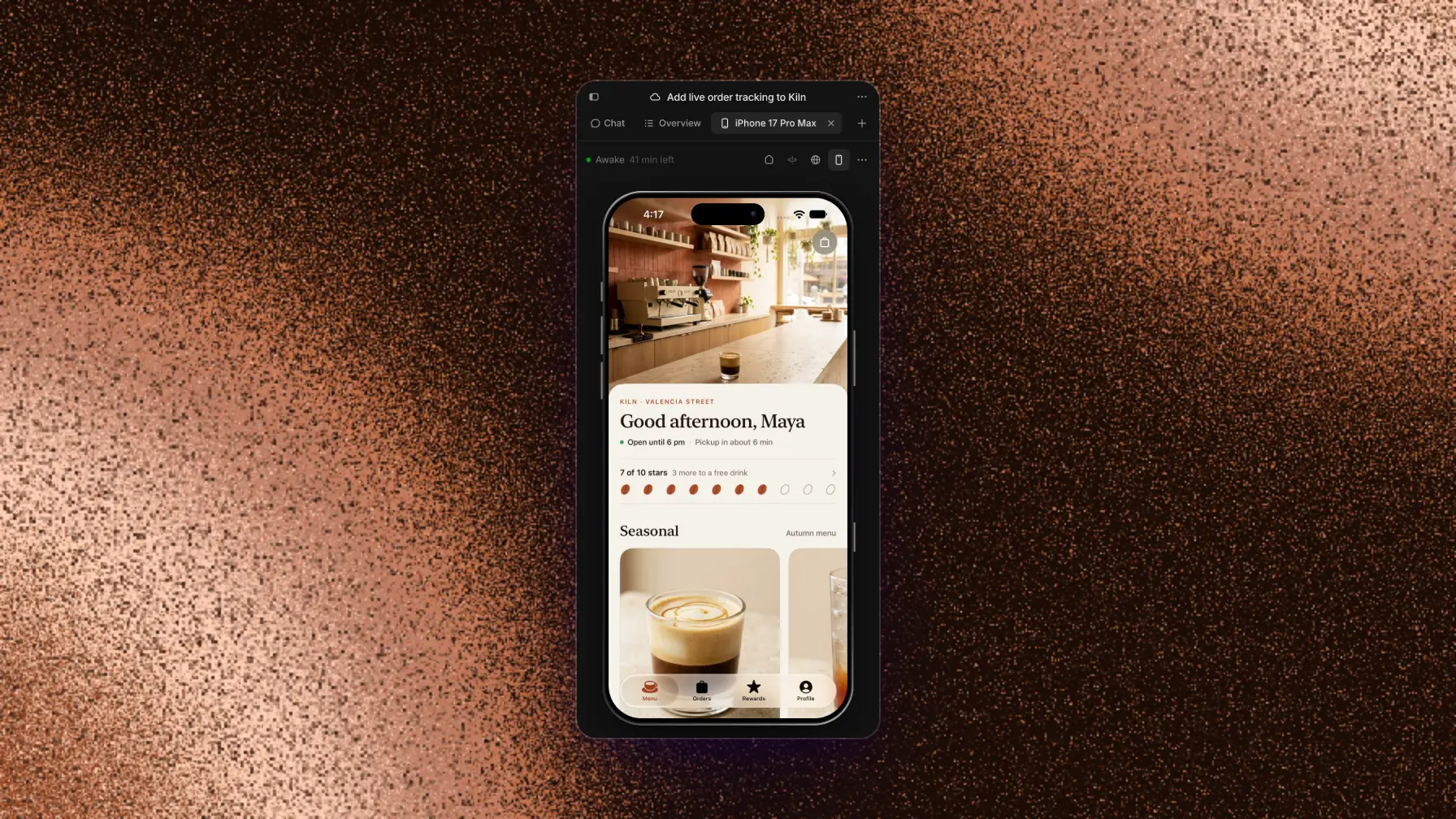
To see a phone, choose Open on its card, or pick it from Phones in the tab menu. The phone opens in a tab named after its model, with a live view of the screen. The tab shows the phone's state and the time left in the session.
In the live view:
- Click or drag on the screen to tap and swipe.
- Click the screen, then type on your keyboard to enter text.
- Use the toolbar for Home, Back on Android, Rotate, and Open URL, which opens a web address or a deep link.
- Use Device frame to show or hide the device hardware around the screen.
- Use the ⋯ menu for Light appearance, Dark appearance, Shake, Save screenshot, Sleep now, Wake phone, and Remove phone.
The Screenshots strip under the phone shows the screenshots Capy took. Capy doesn't stop while you use the phone. To use the phone alone, tell Capy in the chat to wait.
The phone tab is the same in the desktop app and in a browser. In a phone's browser, the phone opens as a tab next to Chat and Overview.
Sessions and sleep
A phone runs in sessions of at most 60 minutes, counting the time the phone takes to start.
- The phone stays awake while the thread works on it, or while its tab is open and visible.
- When the thread stops and nobody has the tab open, the phone goes to sleep within a few minutes.
- At 60 minutes, the phone goes to sleep and its tab shows 1-hour limit reached.
- A sleeping phone keeps its installed build. The next use, or Wake phone, starts a new session with that build. App data from the old session is gone.
- Remove phone ends the session and removes the phone from the thread.
Builds and phones share your organization's Revyl slots. When every slot is in use, a new phone shows Waiting for a phone and starts when a slot is free. Capy stops waiting after 2 hours. To free a slot, put a phone you aren't using to sleep.
Logs
Capy can read the app's logs from an awake phone. On Android, the logs come from logcat. On iOS, Capy reads the app's os_log and NSLog lines. iOS doesn't capture standard output, standard error, or crash reports, so log fatal errors with os_log to see them.
Pricing
A phone bills Capy credits for the time it's awake. A sleeping phone costs nothing.
| Phone | Price per hour |
|---|---|
| iPhone or iPad | $5.40 |
| Android | $3.60 |
Settings → Org → Usage lists phone time under iPhones and Android phones, next to machine time. Models & pricing explains how credits work.
Troubleshooting
| What you see | What to do |
|---|---|
| Mobile builds and devices come with Pro and above | Choose View plans and move to Capy Pro or higher. |
| Off on the Revyl page | An admin turned mobile off. Ask an admin to turn Mobile builds and devices on. |
| Not available yet | Revyl hasn't turned on mobile for your organization. Choose Contact support, and Capy support asks Revyl to add it. |
| Needs support | Choose Contact support, and include the reference on the Revyl page. |
| Waiting for a phone | Every Revyl slot is in use. Put a phone you aren't using to sleep, or wait for a free slot. |
| Live view unavailable or Live view failed | The tab can't show the phone's screen. Choose Retry. |